Create Tables
Athena Enable CloudWatch Metrics
Let’s first enable CloudWatch Metrics for the primary Athena workgroup so we can look at the metrics after running queries during this workshop.
Steps:
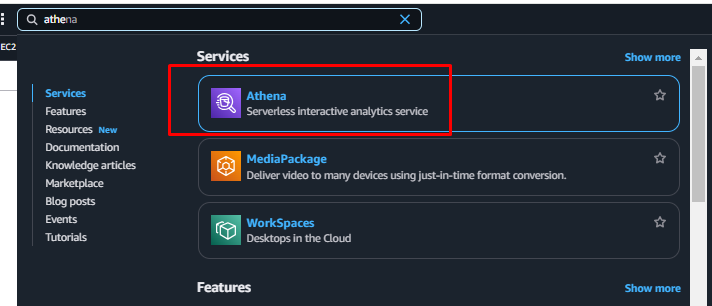
- From the AWS Services menu, type Athena and go to the Athena Console.
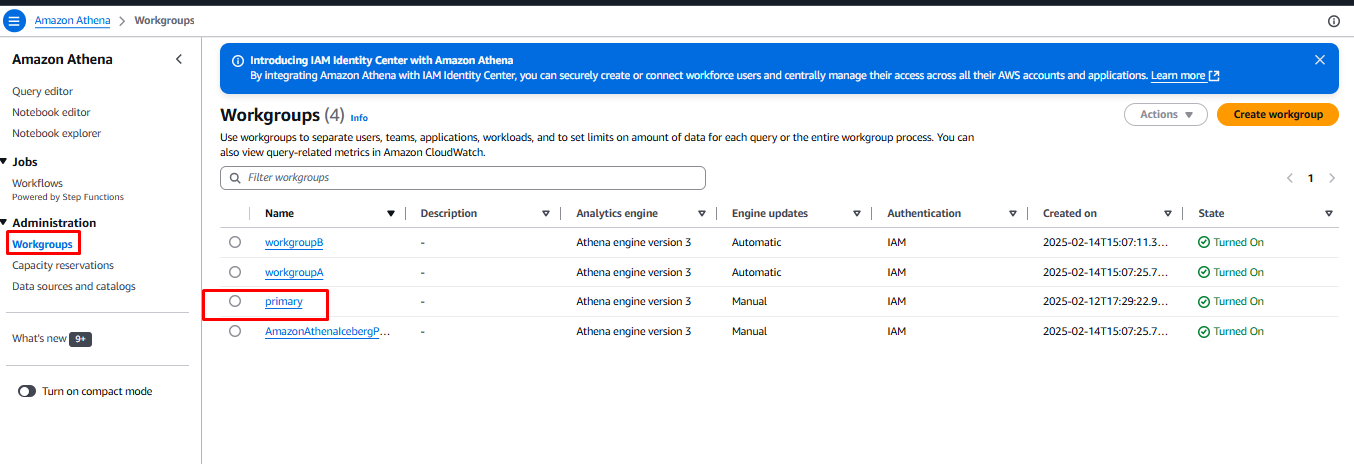
- In the Athena Console, click the hamburger icon (☰ - three horizontal lines) on the top left corner.
- Choose Workgroups and click on the primary workgroup.
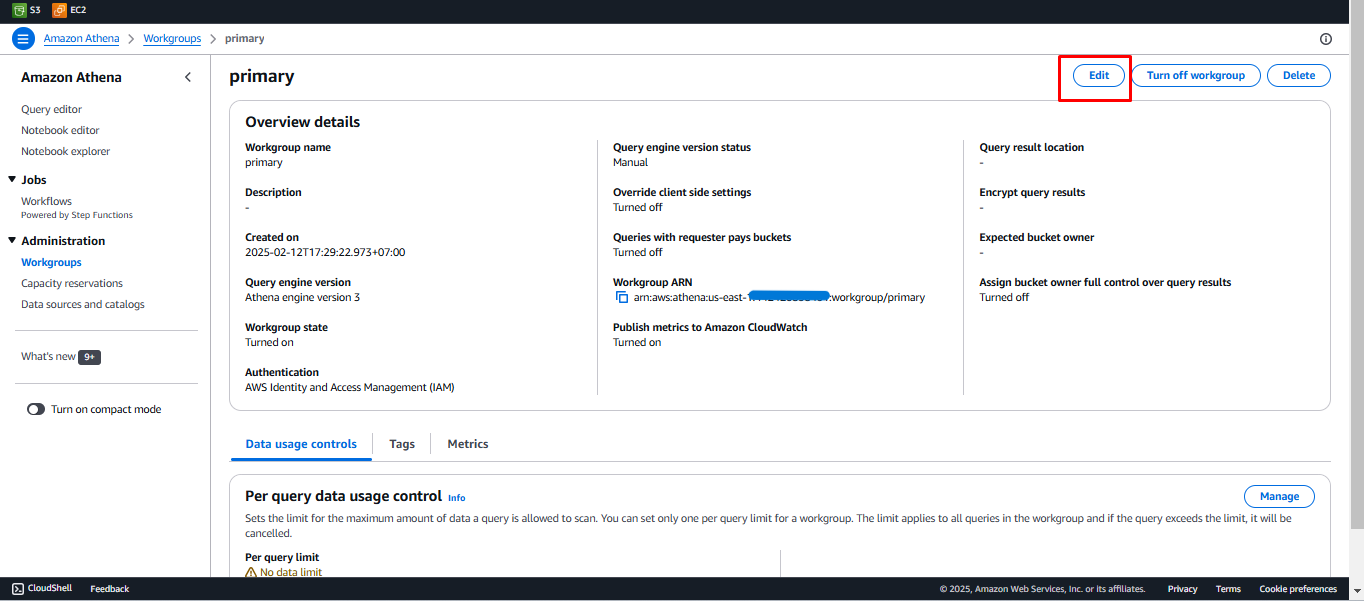
- Click on the Edit button.
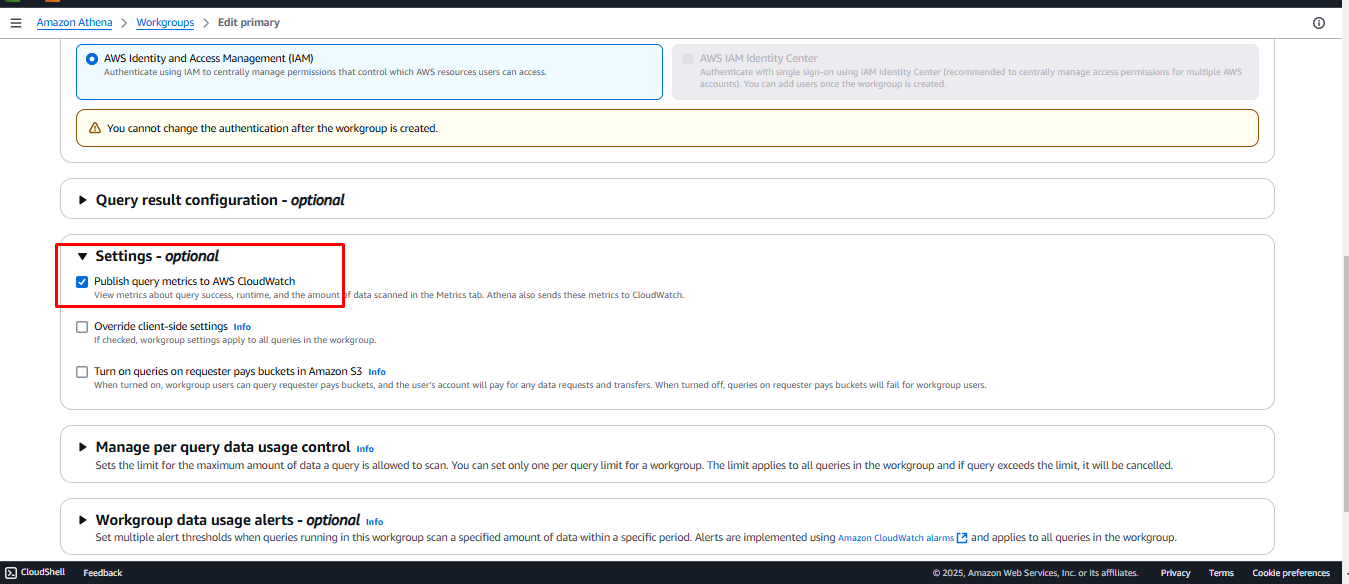
- Scroll down to Settings, enable Publish query metrics to AWS CloudWatch, and click Save changes.
Athena Interface - Set Athena Results Location
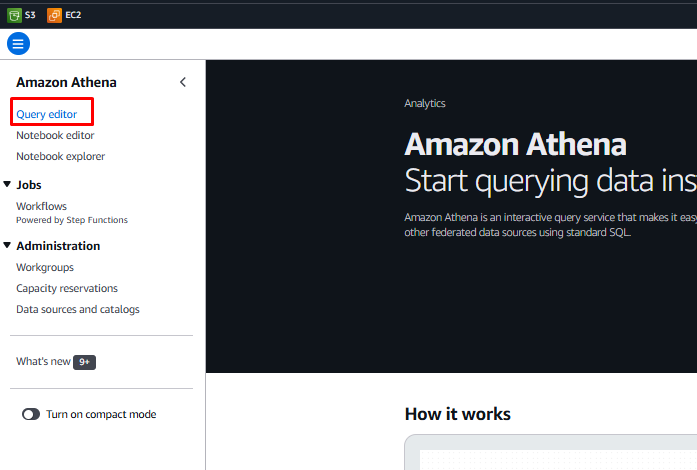
- In the Athena Console, click the hamburger icon and choose Query Editor.
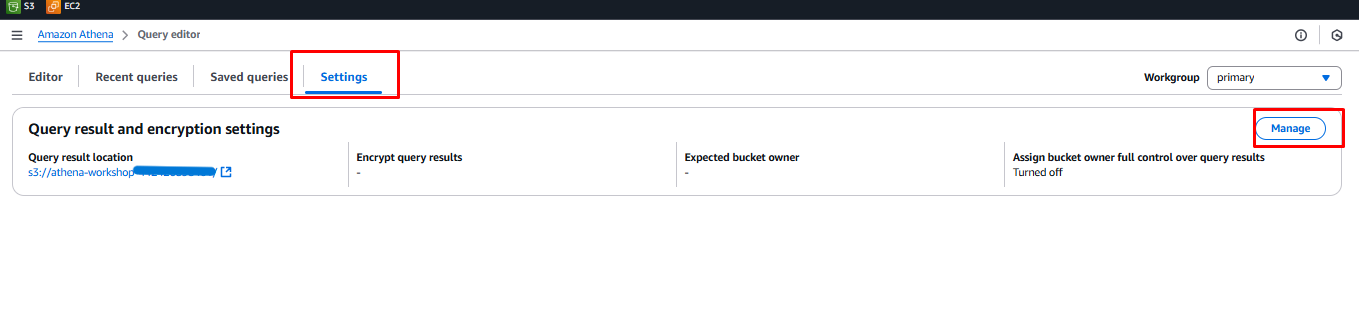
- Click on Settings and then click Manage.
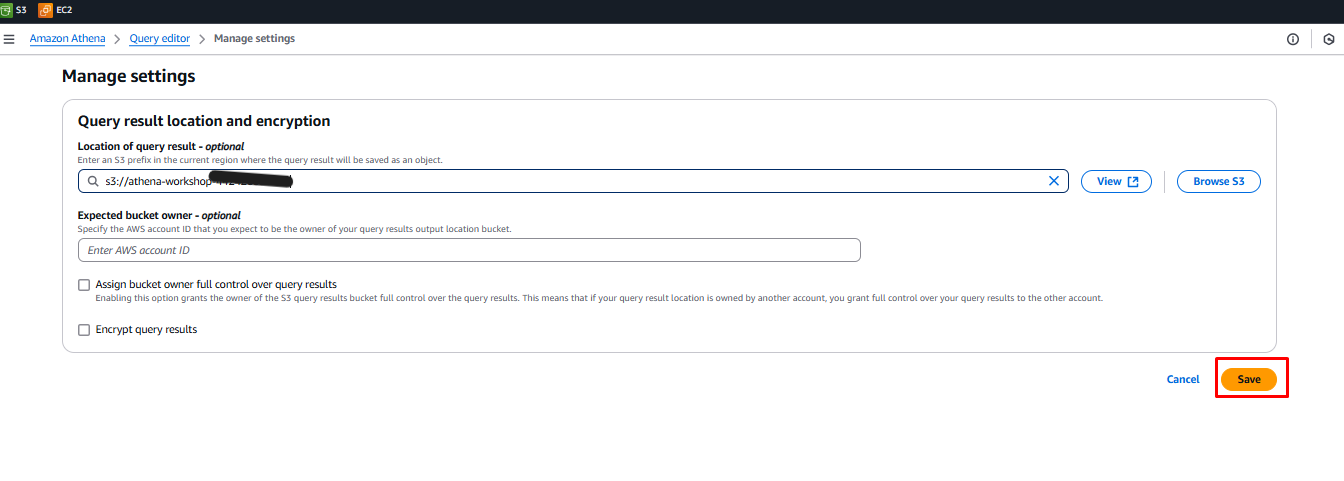
- Under Manage Settings, click the Browse S3 button.

- Find the bucket named:
athena-workshop-<account id>(e.g.,athena-bucket-12345678910). Click the radio button to the left of the bucket name, then click Choose.

- Click the Save button to save the S3 location.
Athena Interface - Create Tables and Run Queries
Now we will create some new tables and run queries against them.
-
Click the Editor tab to display the Athena Query Editor.
-
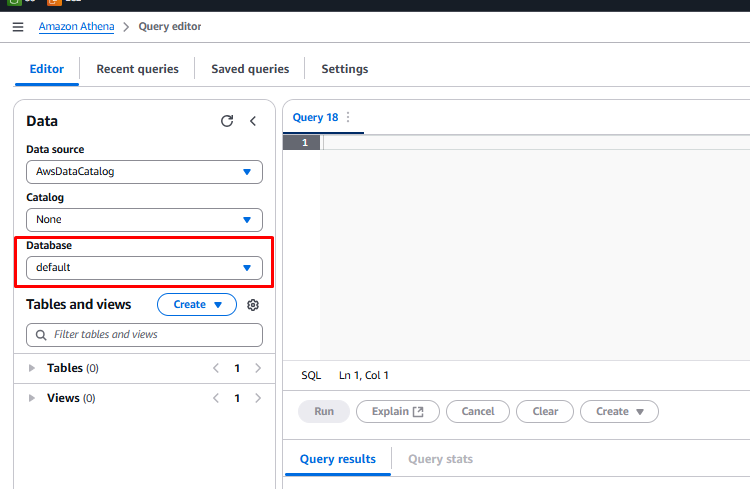
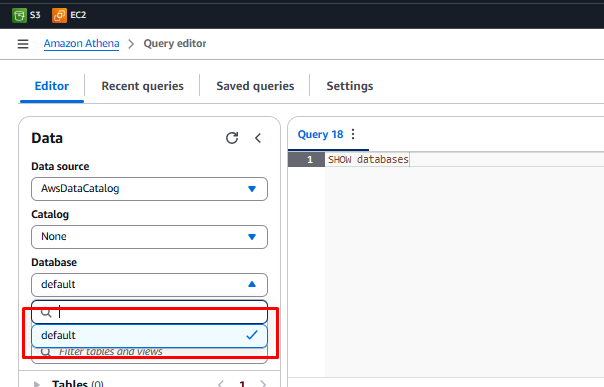
Make sure you are in the default database before running the queries. Check that the Database dropdown shows
default.
-
If you don’t see the default database, copy the query below into the query editor and click Run:
SHOW DATABASES; -
Click the refresh icon in the data section and verify that default appears in the database dropdown.
Creating Tables
We will create 4 new tables:
- customer_csv
- sales_csv
- customer_parquet
- sales_parquet
Create customer_csv Table
-
Navigate back to the Query editor.
-
Click the + icon to add a new tab.
-
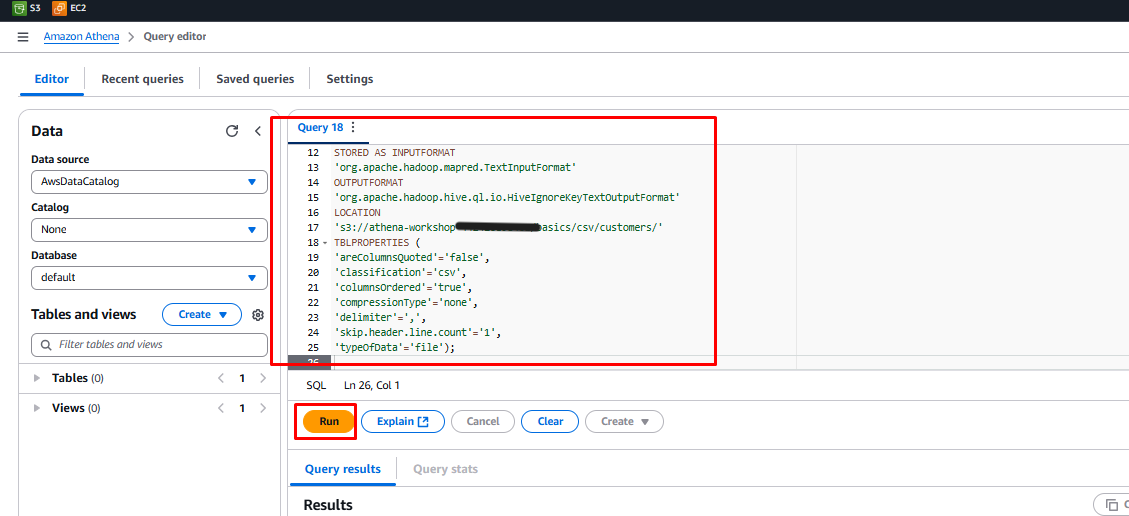
Copy and paste the query below into the query editor:
CREATE EXTERNAL TABLE customers_csv ( card_id bigint, customer_id bigint, lastname string, firstname string, email string, address string, birthday string, country string) ROW FORMAT DELIMITED FIELDS TERMINATED BY ',' STORED AS INPUTFORMAT 'org.apache.hadoop.mapred.TextInputFormat' OUTPUTFORMAT 'org.apache.hadoop.hive.ql.io.HiveIgnoreKeyTextOutputFormat' LOCATION 's3://athena-workshop-<account id>/basics/csv/customers/' TBLPROPERTIES ( 'areColumnsQuoted'='false', 'classification'='csv', 'columnsOrdered'='true', 'compressionType'='none', 'delimiter'=',', 'skip.header.line.count'='1', 'typeOfData'='file'); -
Click Run.
-
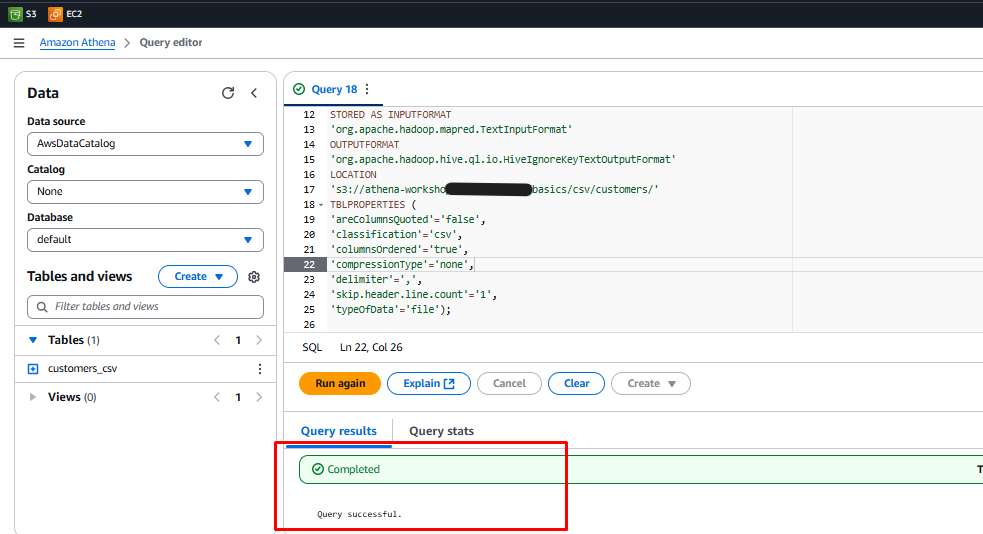
Check the Query Results tab to ensure it shows Completed.
Create sales_csv Table
-
Navigate back to the Query editor.
-
Click the + icon to add a new tab.
-
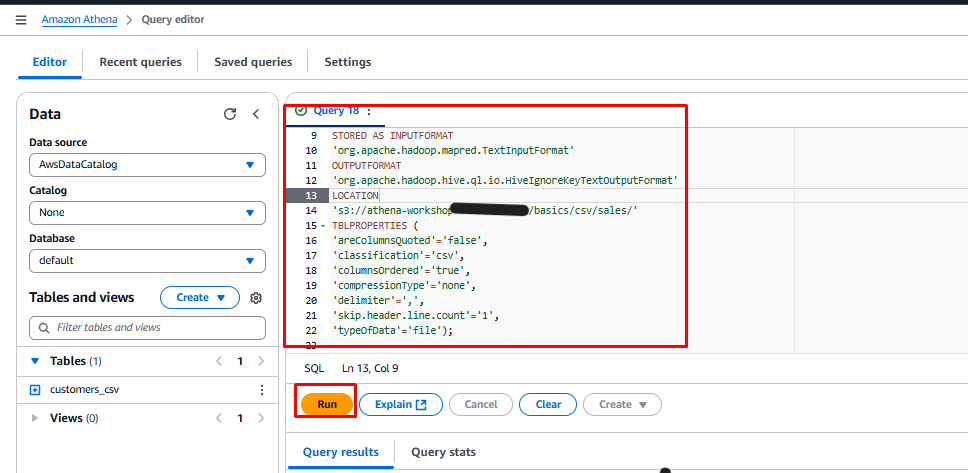
Copy and paste the query below into the query editor:
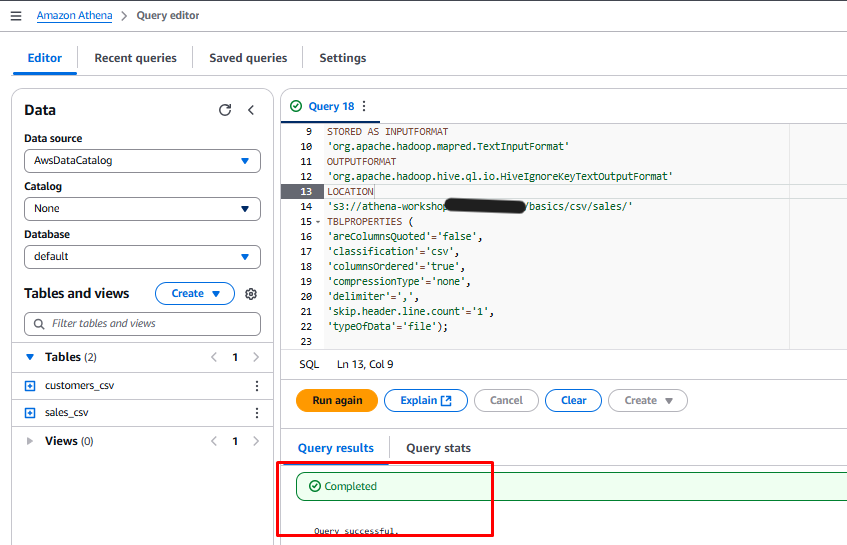
CREATE EXTERNAL TABLE sales_csv( card_id bigint, customer_id bigint, price string, product_id string, timestamp string) ROW FORMAT DELIMITED FIELDS TERMINATED BY ',' STORED AS INPUTFORMAT 'org.apache.hadoop.mapred.TextInputFormat' OUTPUTFORMAT 'org.apache.hadoop.hive.ql.io.HiveIgnoreKeyTextOutputFormat' LOCATION 's3://athena-workshop-<account id>/basics/csv/sales/' TBLPROPERTIES ( 'areColumnsQuoted'='false', 'classification'='csv', 'columnsOrdered'='true', 'compressionType'='none', 'delimiter'=',', 'skip.header.line.count'='1', 'typeOfData'='file'); -
Click Run.
-
Check the Query Results tab to ensure it shows Completed.
Create customer_parquet Table
-
Navigate back to the Query editor.
-
Click the + icon to add a new tab.
-
Copy and paste the query below into the query editor:
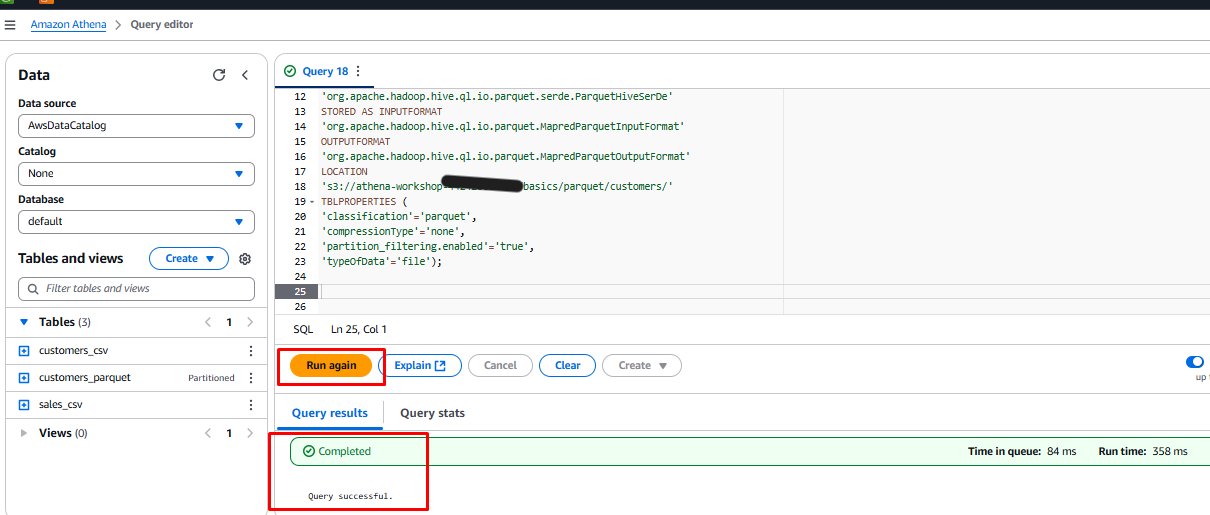
CREATE EXTERNAL TABLE `customers_parquet`( card_id bigint, customer_id bigint, lastname string, firstname string, email string, address string, birthday string) PARTITIONED BY ( `country` string) ROW FORMAT SERDE 'org.apache.hadoop.hive.ql.io.parquet.serde.ParquetHiveSerDe' STORED AS INPUTFORMAT 'org.apache.hadoop.hive.ql.io.parquet.MapredParquetInputFormat' OUTPUTFORMAT 'org.apache.hadoop.hive.ql.io.parquet.MapredParquetOutputFormat' LOCATION 's3://athena-workshop-<account id>/basics/parquet/customers/' TBLPROPERTIES ( 'classification'='parquet', 'compressionType'='none', 'partition_filtering.enabled'='true', 'typeOfData'='file'); MSCK REPAIR TABLE customers_parquet; SHOW PARTITIONS customers_parquet; -
Highlight the CREATE TABLE query.
-
Click Run.
-
Check the Query Results tab to ensure it shows Completed.
-
Select the text
MSCK REPAIR TABLE customers_parquetand click Run to add partitions.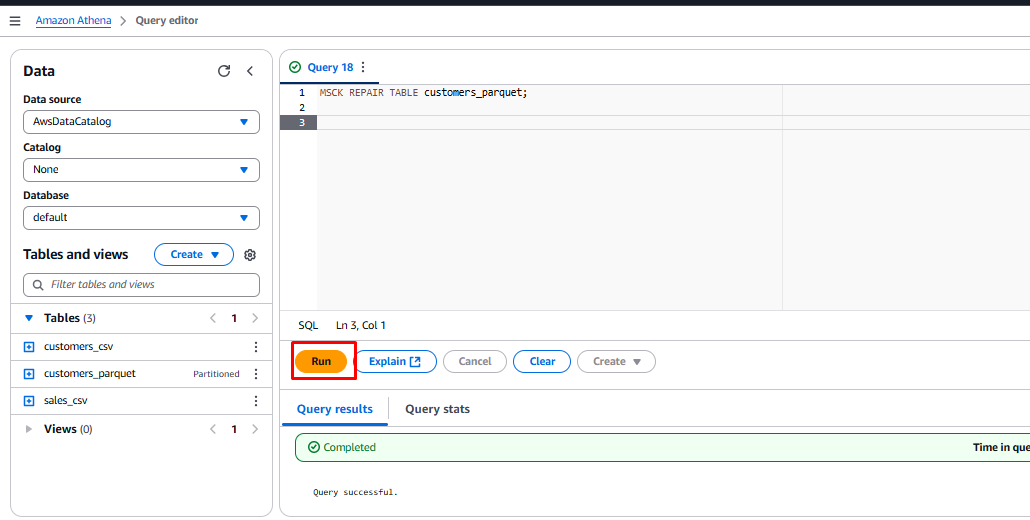
-
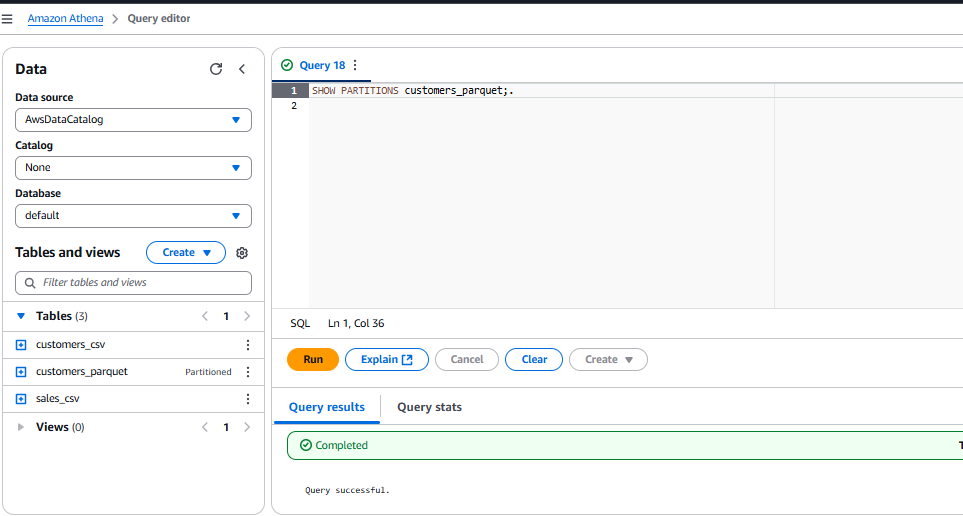
Once complete, select the text
SHOW PARTITIONS customers_parquetand click Run.
Create sales_parquet Table
-
Navigate back to the Query editor.
-
Click the + icon to add a new tab.
-
Copy and paste the query below into the query editor:
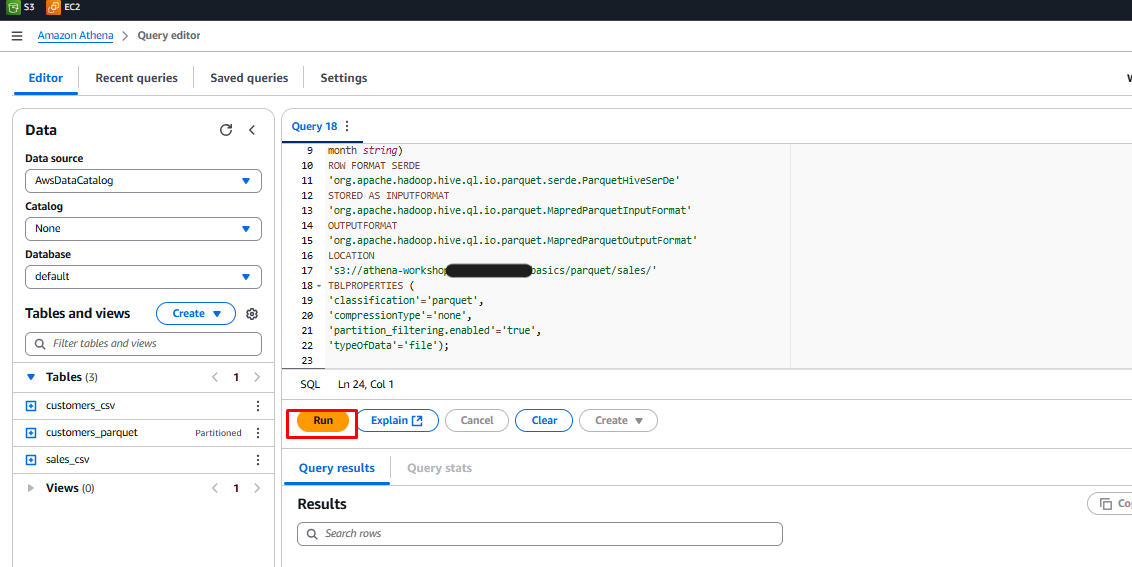
CREATE EXTERNAL TABLE `sales_parquet`( card_id bigint, customer_id bigint, price double, product_id string, timestamp string) PARTITIONED BY ( year string, month string) ROW FORMAT SERDE 'org.apache.hadoop.hive.ql.io.parquet.serde.ParquetHiveSerDe' STORED AS INPUTFORMAT 'org.apache.hadoop.hive.ql.io.parquet.MapredParquetInputFormat' OUTPUTFORMAT 'org.apache.hadoop.hive.ql.io.parquet.MapredParquetOutputFormat' LOCATION 's3://athena-workshop-<account id>/basics/parquet/sales/' TBLPROPERTIES ( 'classification'='parquet', 'compressionType'='none', 'partition_filtering.enabled'='true', 'typeOfData'='file'); MSCK REPAIR TABLE sales_parquet; SHOW PARTITIONS sales_parquet; -
Highlight the CREATE TABLE query.
-
Click Run.
-
Check the Query Results tab to ensure it shows Completed.
-
Select the text
MSCK REPAIR TABLE sales_parquetand click Run to add partitions.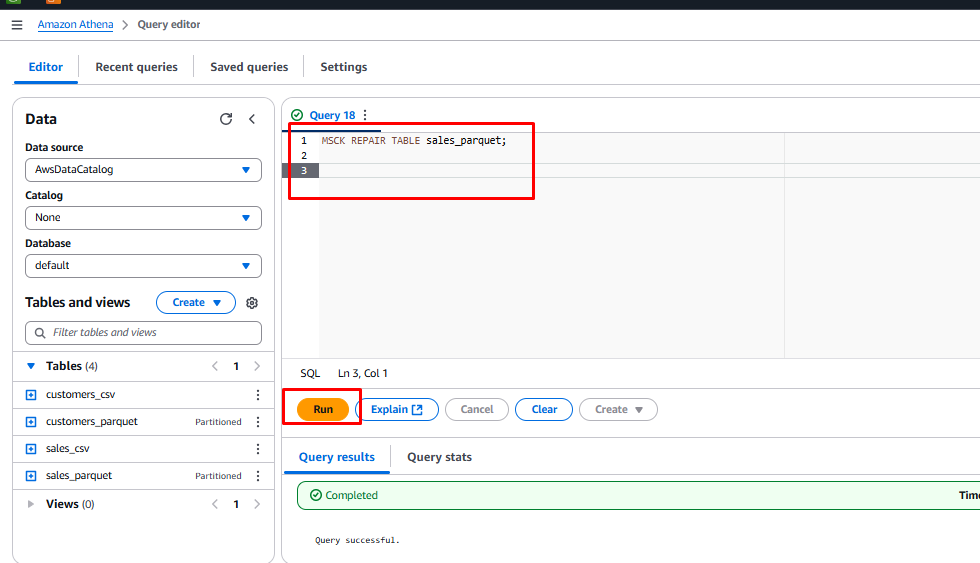
-
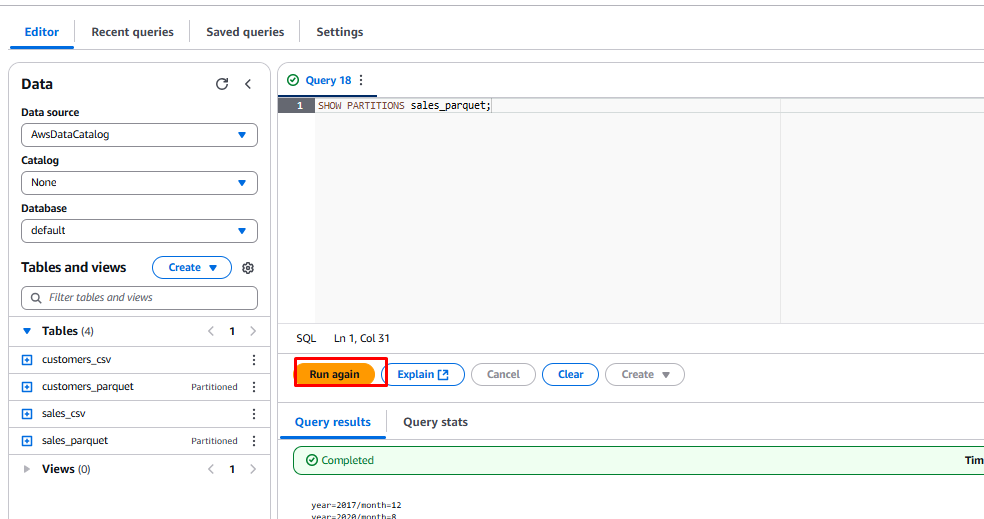
Once complete, select the text
SHOW PARTITIONS sales_parquetand click Run.
Partitioning Data in Athena
By partitioning your data, you can restrict the amount of data scanned by each query, improving performance and reducing cost.
Athena supports Apache Hive-style partitions, where paths contain key-value pairs (e.g., country=us/ or year=2021/month=01/day=26/). To load new Hive partitions into a partitioned table, use:
MSCK REPAIR TABLE table_name;
Compare Performance Between Tables
Now that we have created the tables, let’s run queries to compare their performance.
Steps:
-
Navigate back to the Query editor.
-
Click the + icon to add a new tab.
-
Copy and paste the query below into the query editor:
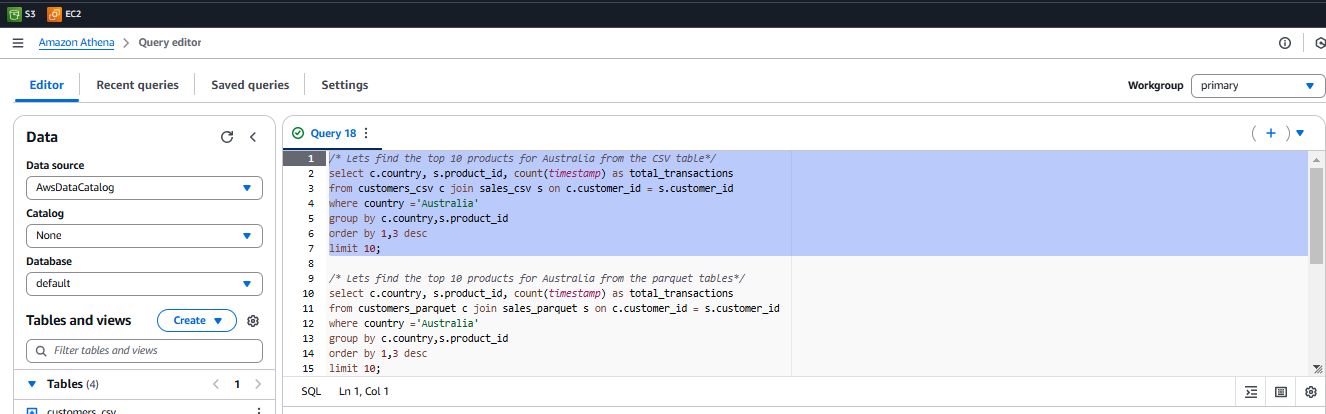
/* Lets find the top 10 products for Australia from the CSV table*/ select c.country, s.product_id, count(timestamp) as total_transactions from customers_csv c join sales_csv s on c.customer_id = s.customer_id where country ='Australia' group by c.country,s.product_id order by 1,3 desc limit 10; /* Lets find the top 10 products for Australia from the parquet tables*/ select c.country, s.product_id, count(timestamp) as total_transactions from customers_parquet c join sales_parquet s on c.customer_id = s.customer_id where country ='Australia' group by c.country,s.product_id order by 1,3 desc limit 10; /* Lets find the top 10 biggest spending customers from the sales CSV table */ select customer_id, sum(cast(price as decimal(6,2))) as total_sales from sales_csv s group by customer_id order by 2 desc limit 10; /* Lets find the top 10 biggest spending customers from the sales parquet table */ select customer_id, sum(cast(price as decimal(6,2))) as total_sales from sales_parquet s group by customer_id order by 2 desc limit 10; -
Run the queries one by one, highlighting each SQL statement block and clicking Run.
-
In the Query Results section, note the Run Time and Data Scanned values.

Performance Comparison
| Query | Table | Time Taken | Data Scanned |
|---|---|---|---|
| Top Ten Products by transaction count in Australia | customers_csv, sales_csv | 2.07 sec | 559 MB |
| Top Ten Products by transaction count in Australia | customers_parquet, sales_parquet | 2.40 sec | 199 MB |
| Top Ten Customers By Total Spend | sales_csv | 1.27 sec | 525 MB |
| Top Ten Customers By Total Spend | sales_parquet | 1.7 sec | 96 MB |