Create Tables with Glue
In this lab, we will use AWS Glue Crawlers to scan sales data and create a new table in the AWS Glue Data Catalog. Then, we will use Amazon Athena to query that table.
Step 1: Access AWS Glue Console
- Open the AWS Management Console.
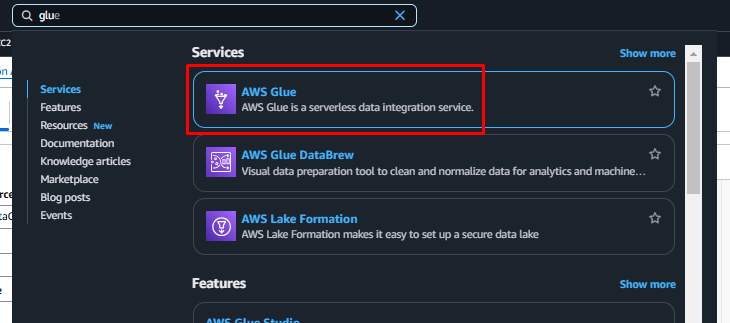
- Type Glue in the search bar and select AWS Glue from the search results to open the AWS Glue Console.
Step 2: Create Crawler
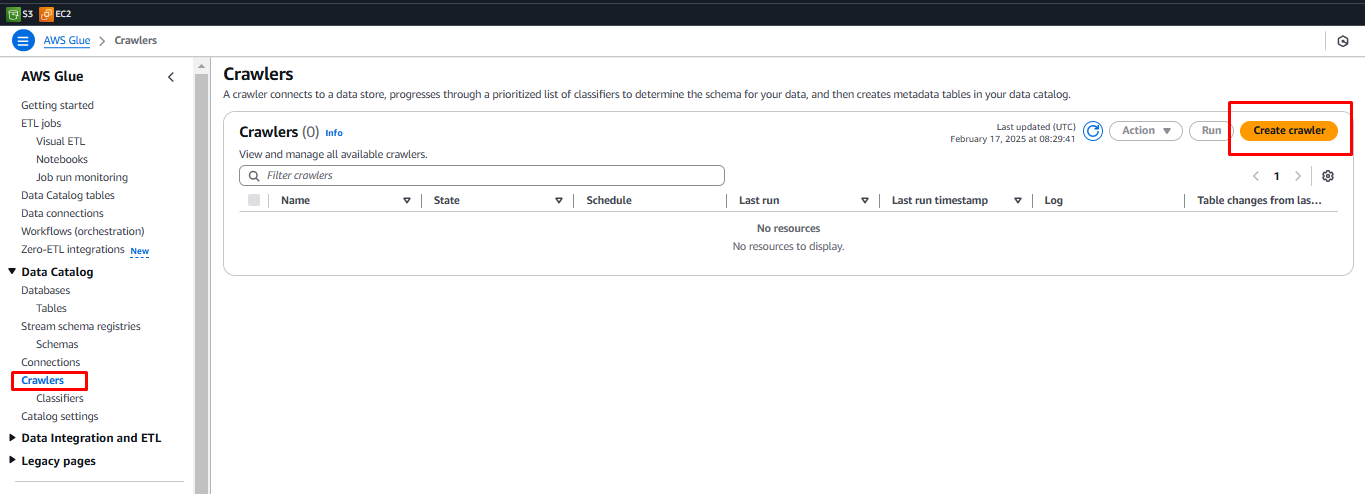
- In the AWS Glue Console, select Crawlers from the left-hand menu.
- Click the Create Crawler button.
Step 3: Name and Configure Data Source
-
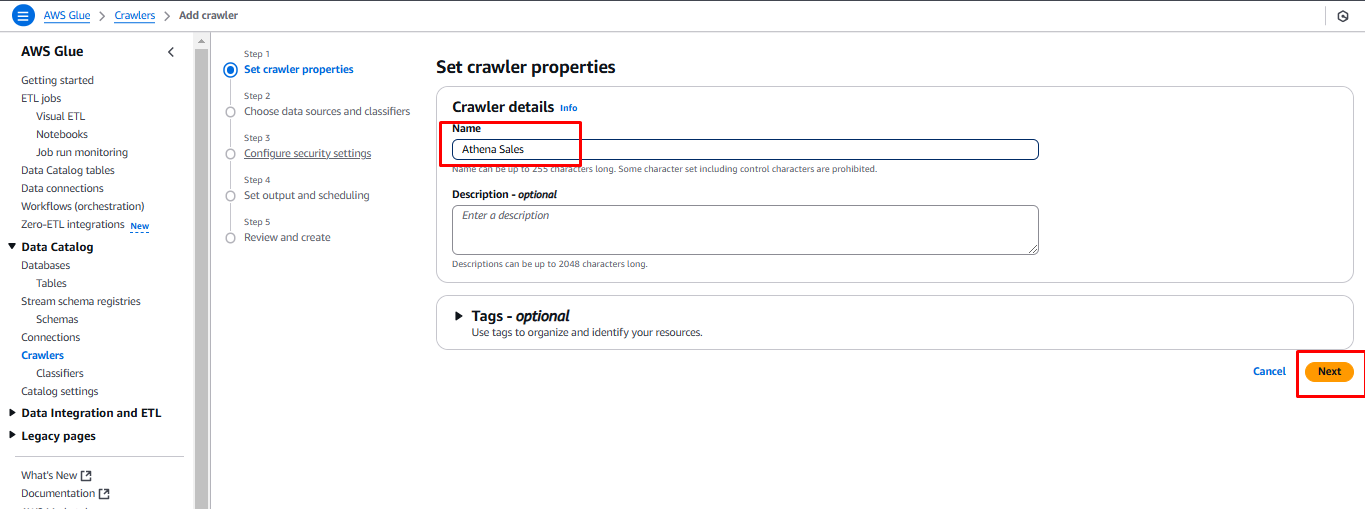
Enter the name Athena Sales for the crawler and click NEXT.
-
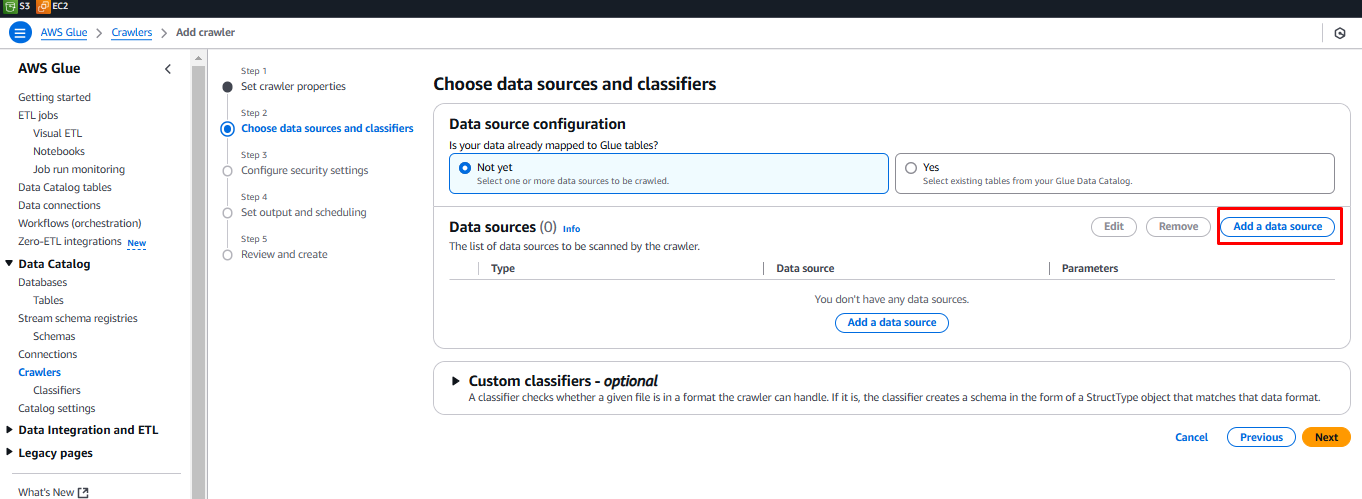
When asked “Is your data already mapped to Glue tables?”, select Not yet.
-
Click Add a Data Source.
-
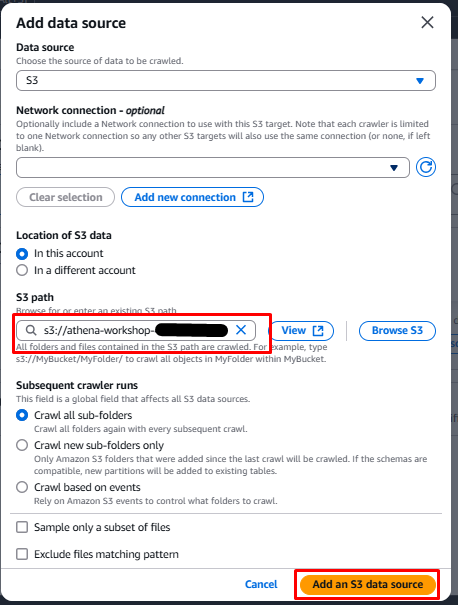
In the Data Source section, select S3.
-
Click Browse S3, then follow these steps:
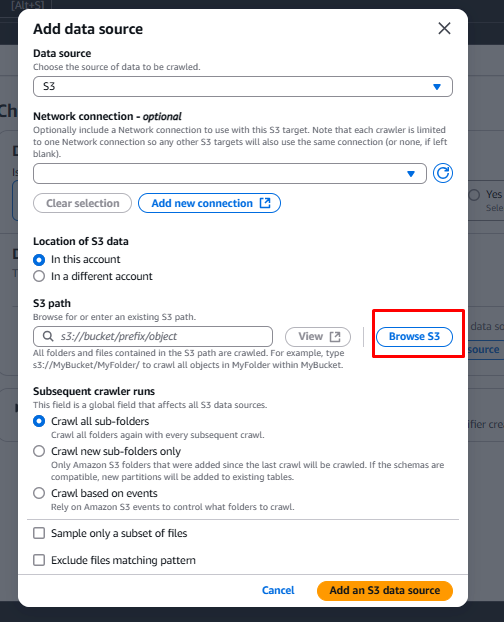
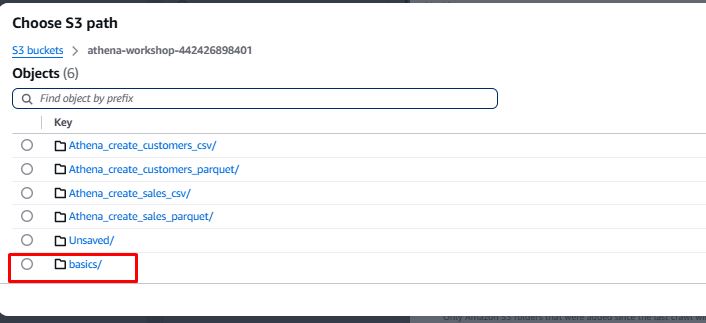
- Select a bucket that starts with athena-workshop-.

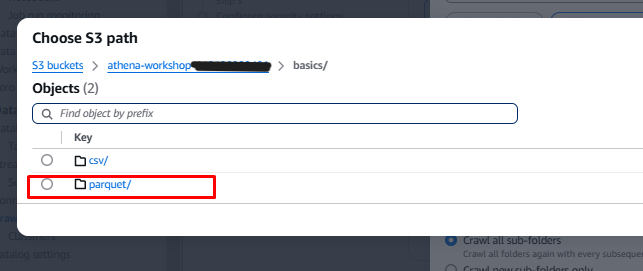
- Navigate to the Basics folder, then select the parquet folder.
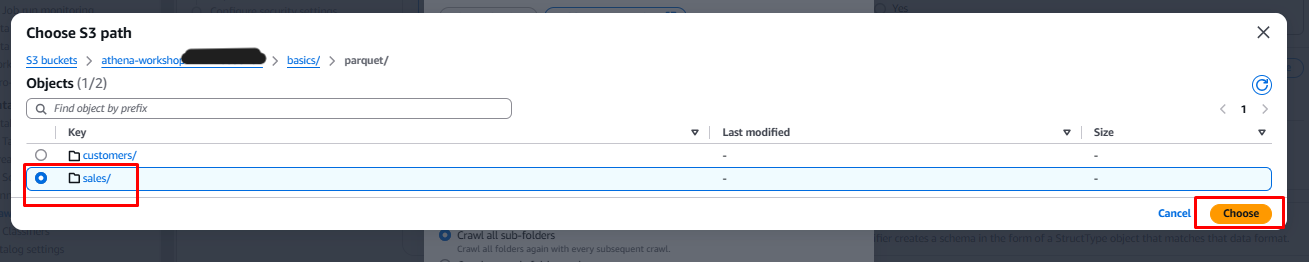
- Click the circle next to the sales folder.
- Click Choose.
- Select a bucket that starts with athena-workshop-.
-
Keep the remaining settings as is and click Add an S3 Data source.
Step 4: Create IAM Role
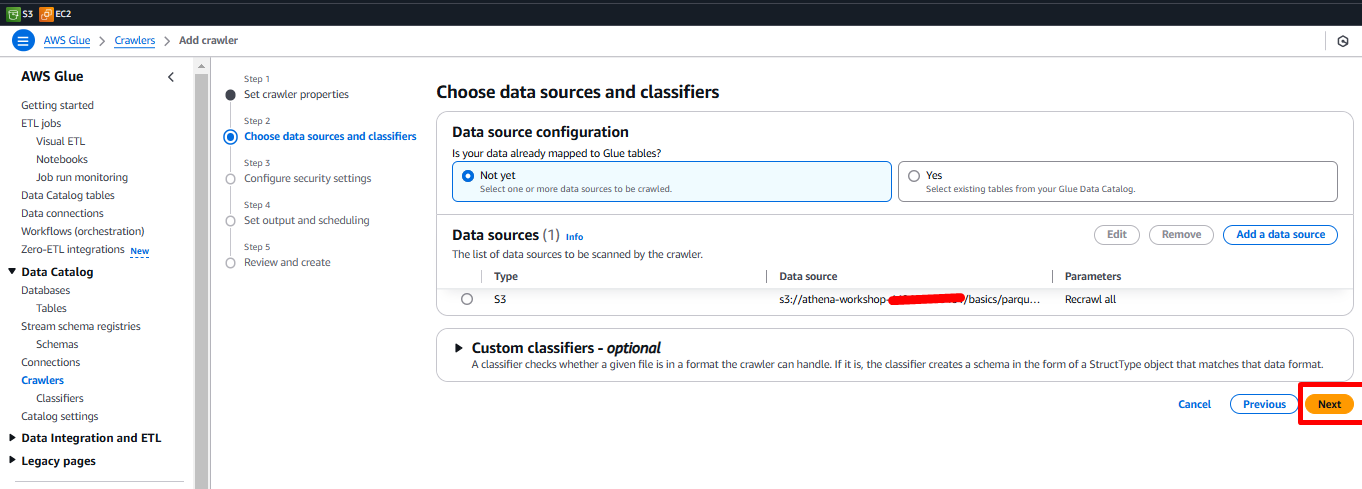
- Click Next.
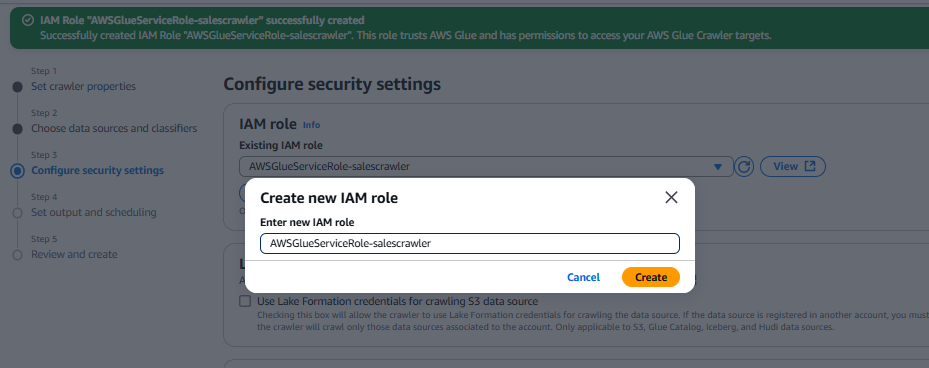
- Click the Create new IAM Role button, enter AWSGlueServiceRole-salescrawler as the role name, and click the Create button.
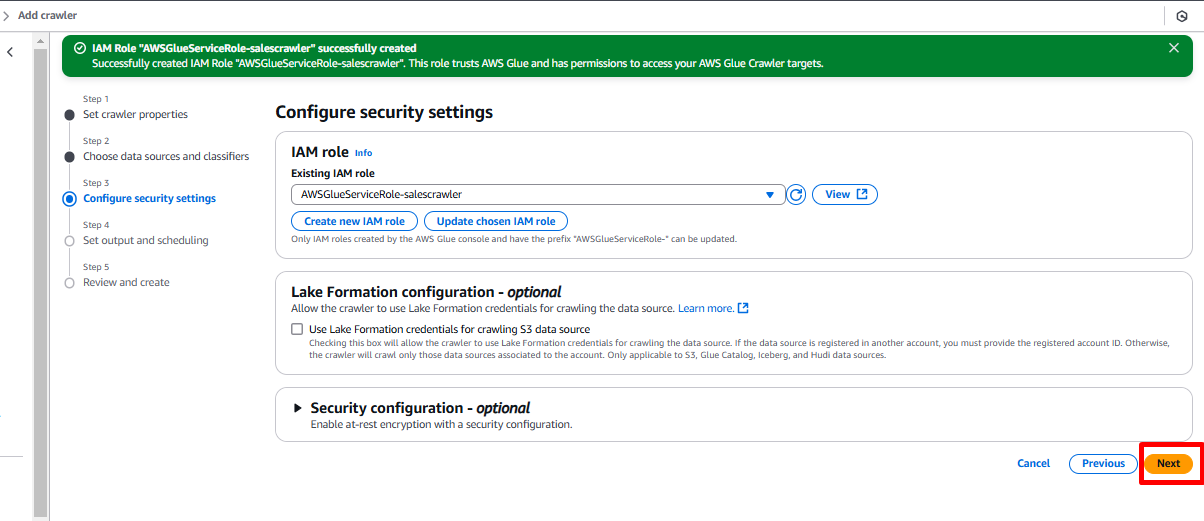
- Click the Next button.
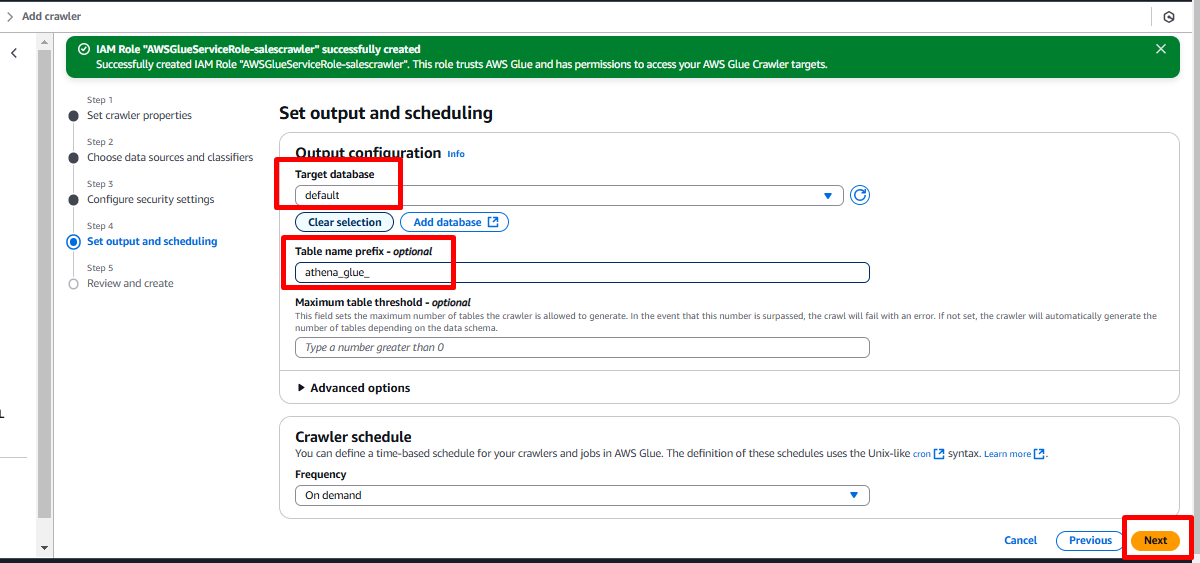
- In the Set output and scheduling section, follow these steps:
- Target Database: Choose default.
- Table Name Prefix (optional): Enter athena_glue_.
- Click Next.
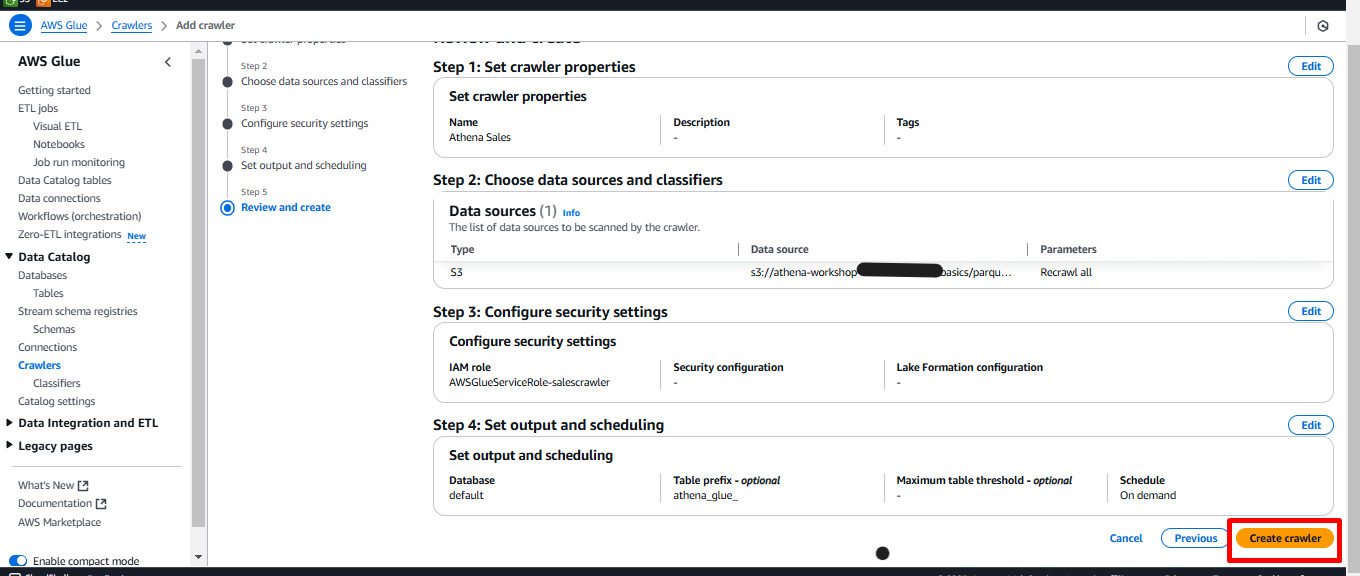
Step 5: Review and Create Crawler
- On the Review and Create screen, click Create Crawler.
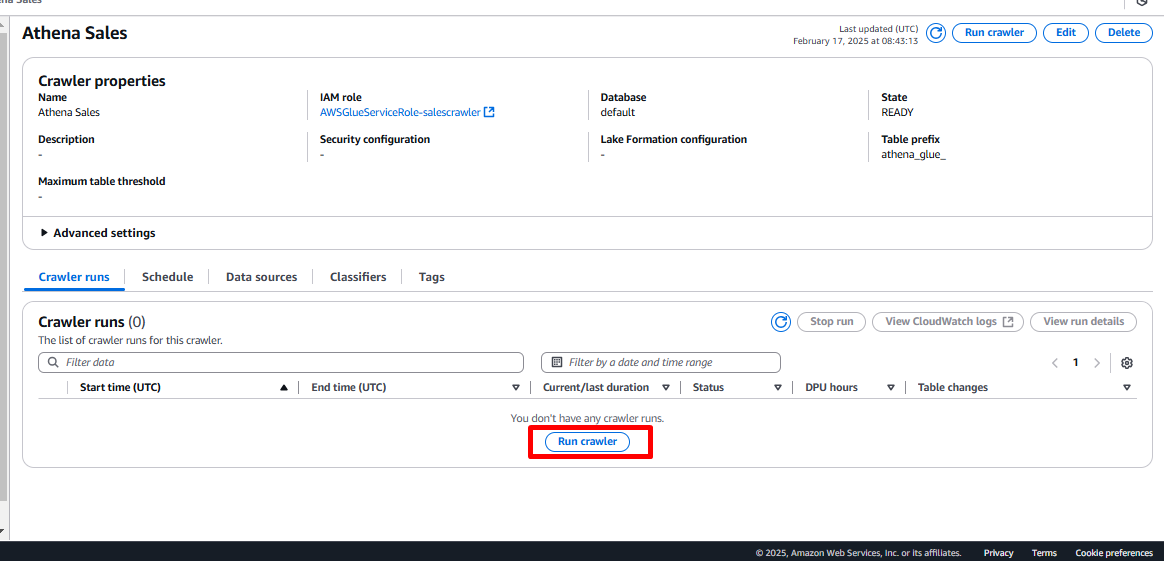
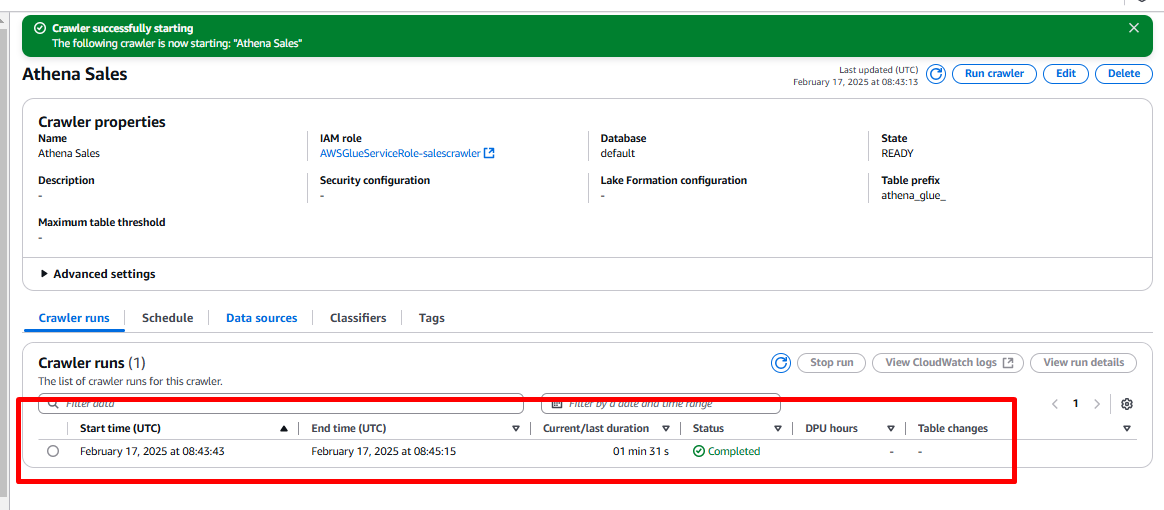
- After the crawler is created, click Run crawler. This process may take 2-4 minutes to complete.
- After the crawler completes, you will see a new table added.
Query the New Table with Athena
Once the table is created successfully, we will go back to the Athena Console and run a query.
Step 6: Access Athena Console
- Open the AWS Management Console and type Athena in the search bar.
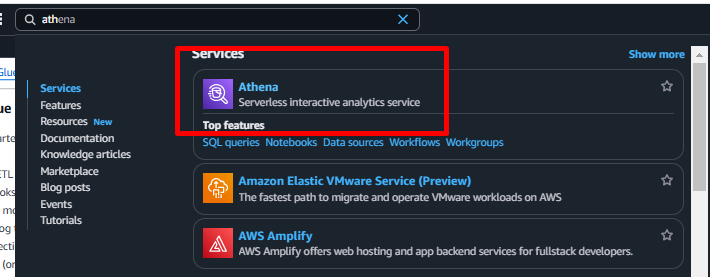
- Select Athena from the search results to open the Athena Console.
Step 7: Query the Table
- In the left-hand pane of the Query Editor, you will see the athena_glue_sales table in the list of tables.
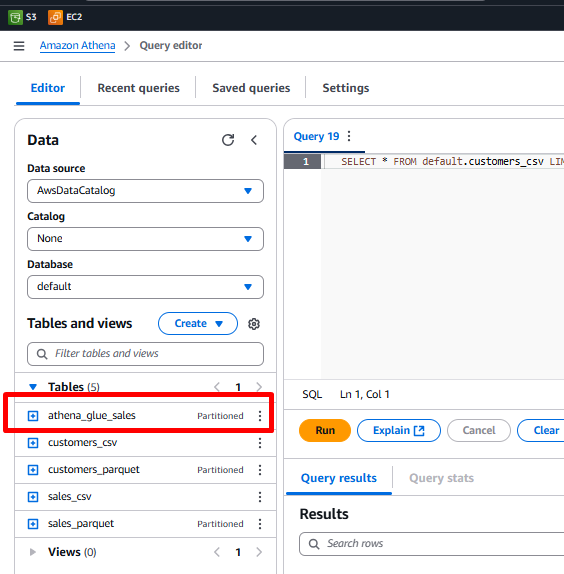
- Click the three-dot icon (ellipsis) next to the table name and select Preview Table.
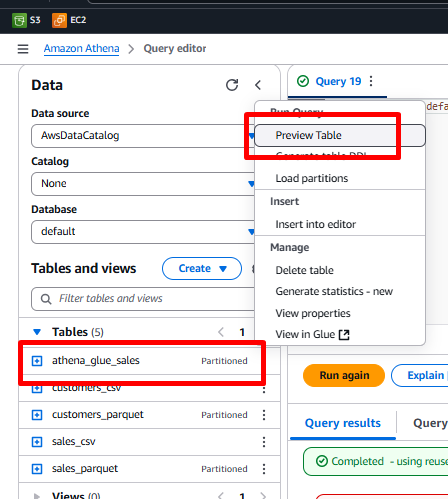
- The query will run and return sales data.
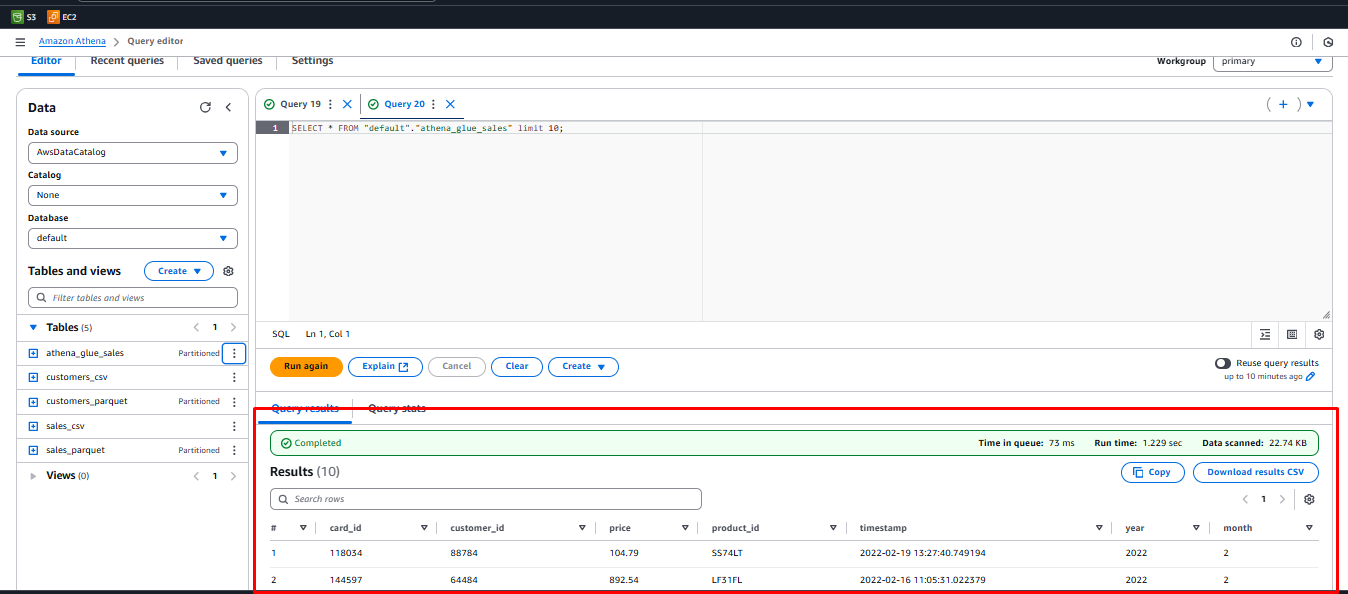
Congratulations! You have successfully created a new table using AWS Glue Crawler and queried it with Amazon Athena.