ETL with Athena CTAS
Raw data in the data lake is typically in CSV or text format, which is not optimized for querying using Athena and other tools. Therefore, converting the data into columnar formats like Parquet is essential. In this lab, we will use the Create Table As Select (CTAS) statement to create a new table from an existing table in CSV format. The CTAS statement will create a new table in Parquet format, compress and partition the data, and then load the data into the new table.
Step 1: Query and Run CTAS
- Open Query editor.
- Click the + to add a new tab.
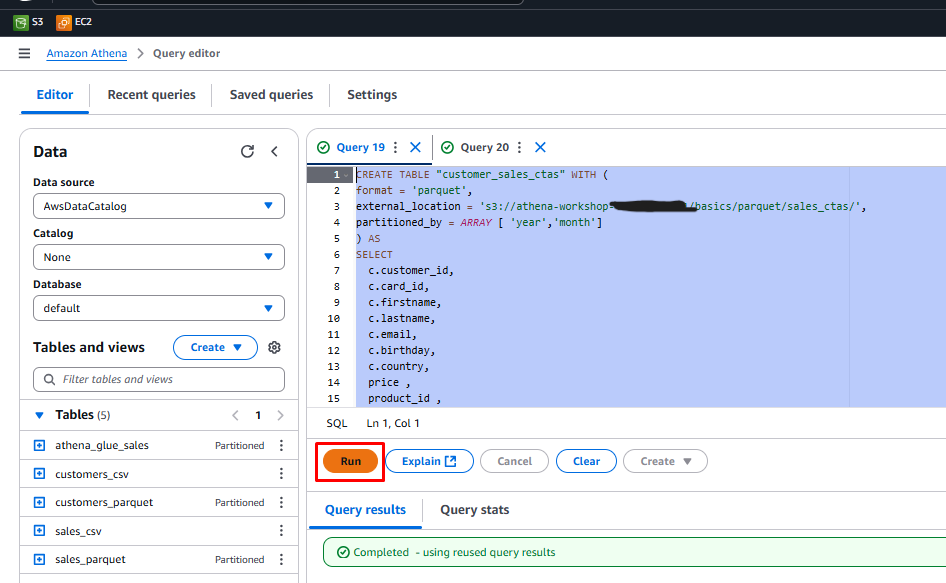
- Copy and run the table creation statement.
This query has two statements: The first statement will create a new table called customer_sales_ctas.
The table format is set to Parquet, a columnar format optimized for performance.
The files will be stored in an external location, in this case, the S3 bucket created for the workshop with the prefix /basics/parquet/sales_ctas/.
Data will be partitioned by year and month.
Data is selected from existing tables to populate the new table.
- Run the first statement: Click Run to create the new table. This may take a few minutes. Once the query is complete, you will see a Completed status in the query result tab.
Step 2: Query the New Table
- Run the second statement: Select the second statement and click Run to query the newly created table.
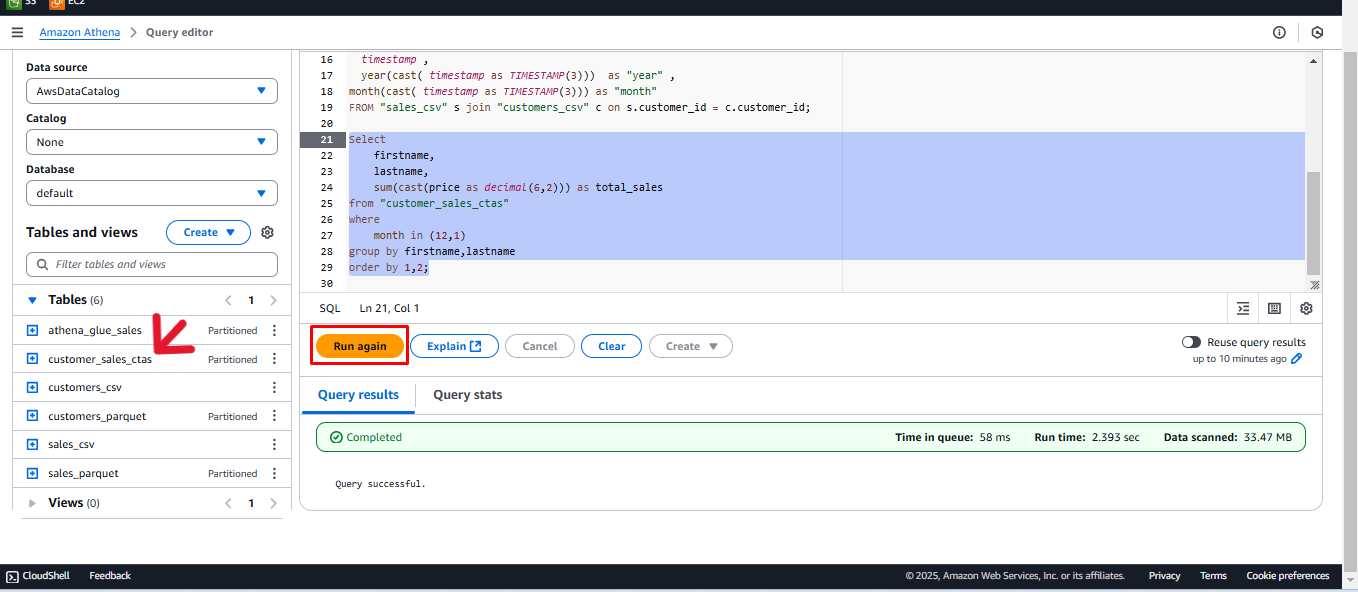
Congratulations! You have successfully created a new table in your data lake and populated it using the Create Table As Select (CTAS) statement in Athena.