Athena Workgroups
Athena Workgroups
Amazon Athena allows you to use workgroups to separate users, teams, applications, or workloads. Workgroups enable you to set limits on the amount of data each query or workgroup can process and help track costs. Additionally, workgroups act as resources, allowing you to apply resource-level identity-based policies to control access to a specific workgroup.
Viewing CloudWatch Metrics
In the Create Tables lab, we enabled CloudWatch metrics for the primary workgroup. Now, let’s review the CloudWatch metrics for the primary workgroup in the Athena console.
- Open the Athena console.
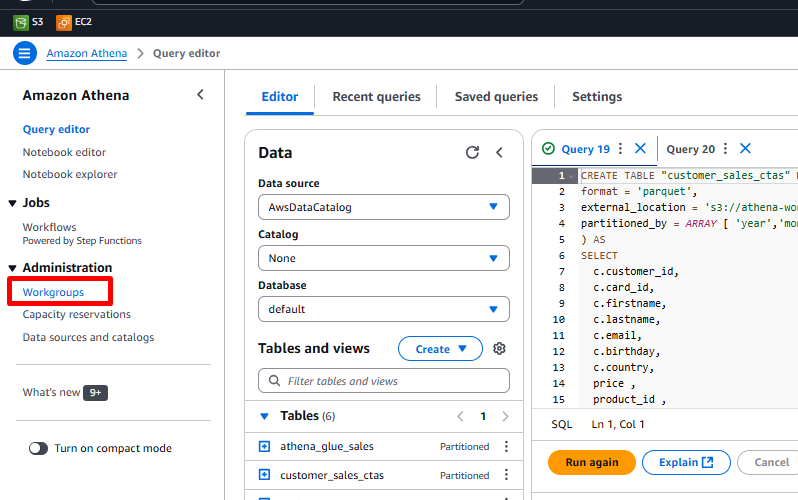
- Select Workgroups from the left-hand menu.
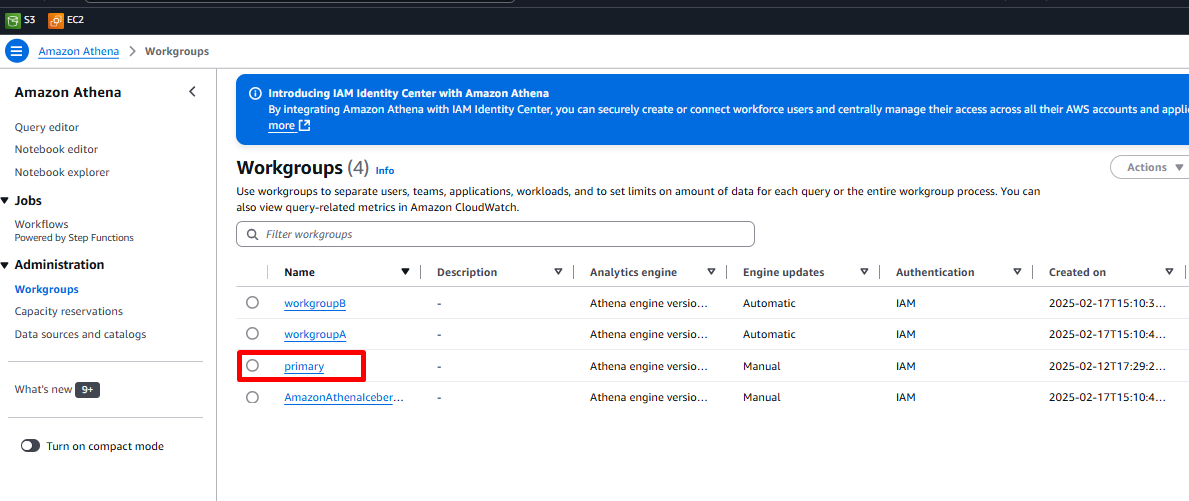
- Click on the primary workgroup from the list of workgroups.
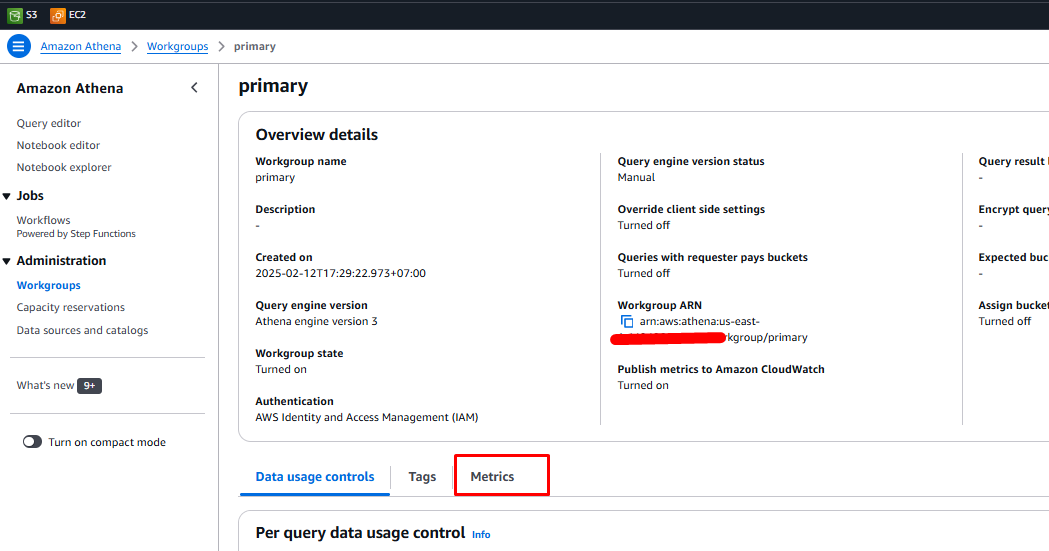
- Navigate to the Metrics tab in the Workgroup details screen. You will see several metrics, including:
- Total data scanned
- Total successful queries
- Total failed queries
- Total execution time
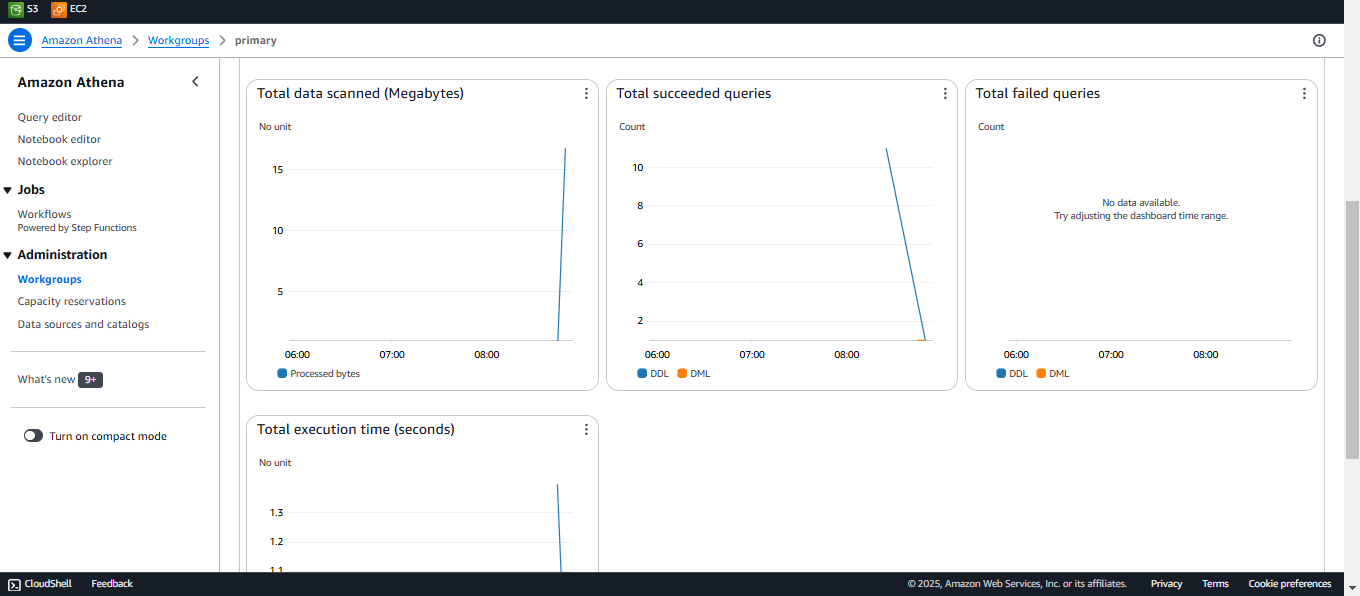
The displayed graphs may have limited data points, as they reflect the usage of your lab account.
Enforcing Cost Constraints
Athena SQL query pricing is based on the amount of data scanned. Workgroups allow you to enforce cost constraints by setting a maximum data scan limit for queries.
We will now configure a workgroup to restrict the maximum data scanned per query.
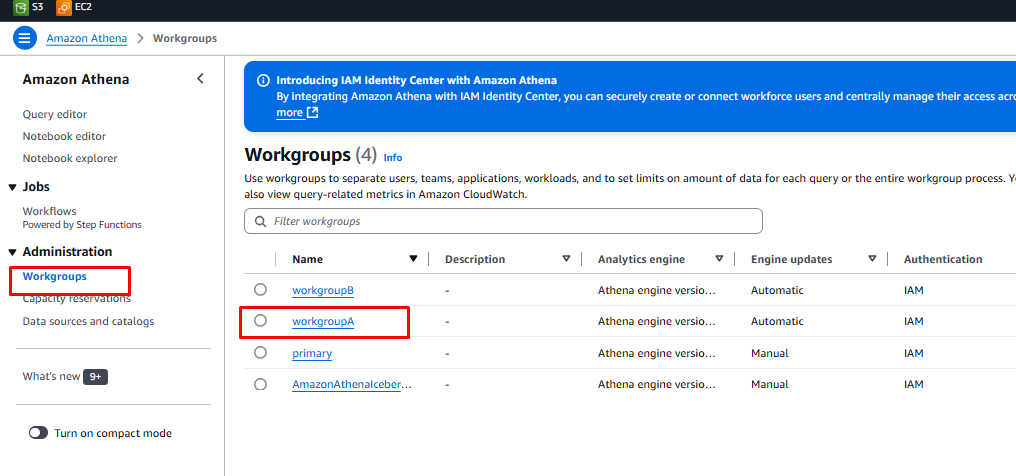
- In the Athena console, select Workgroups from the left-hand menu.
- Click WorkgroupA to view its details.
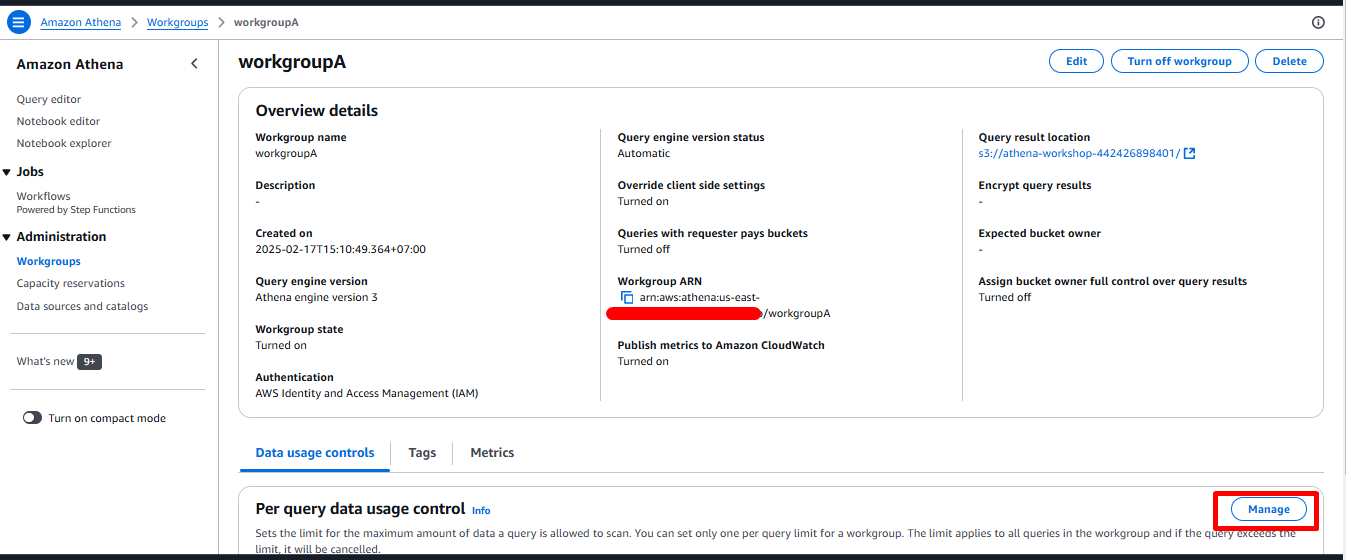
- Go to the Data Usage Controls tab and click Manage.
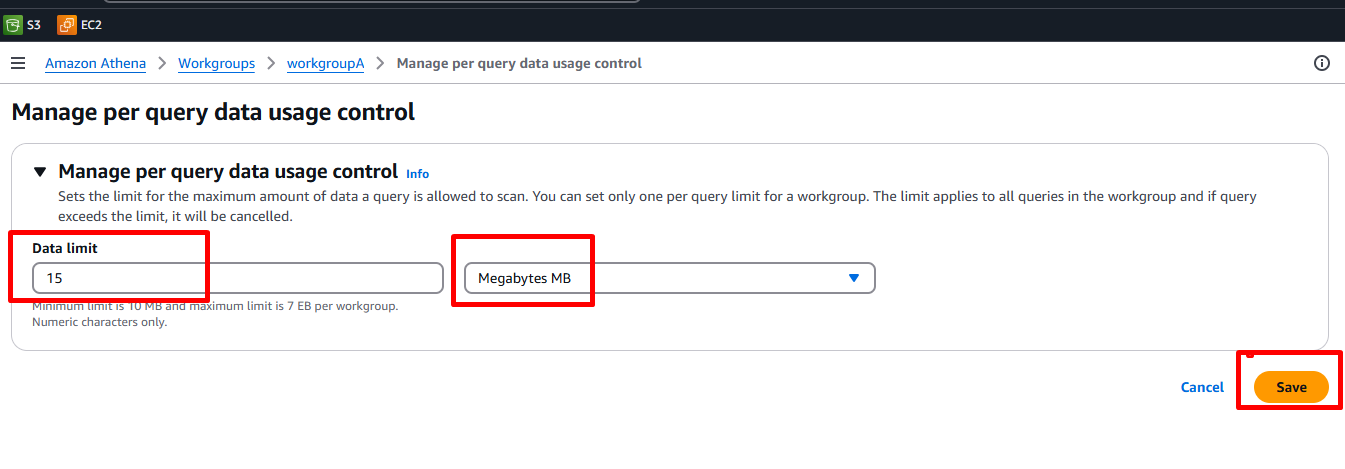
- Set the maximum data scanned per query in this workgroup to 15 Megabytes (MB).
- Click Save.
Testing the Workgroup Limit
To test the new workgroup limit, log in as a new user. You will first retrieve the login credentials from AWS Secrets Manager.
-
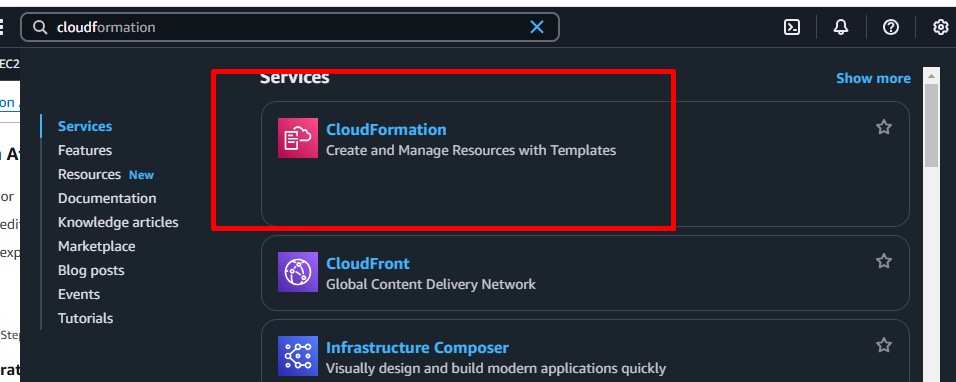
In the AWS Management Console, search for CloudFormation and select it.
-
Click the workshop stack name (e.g.,
athena-workshop).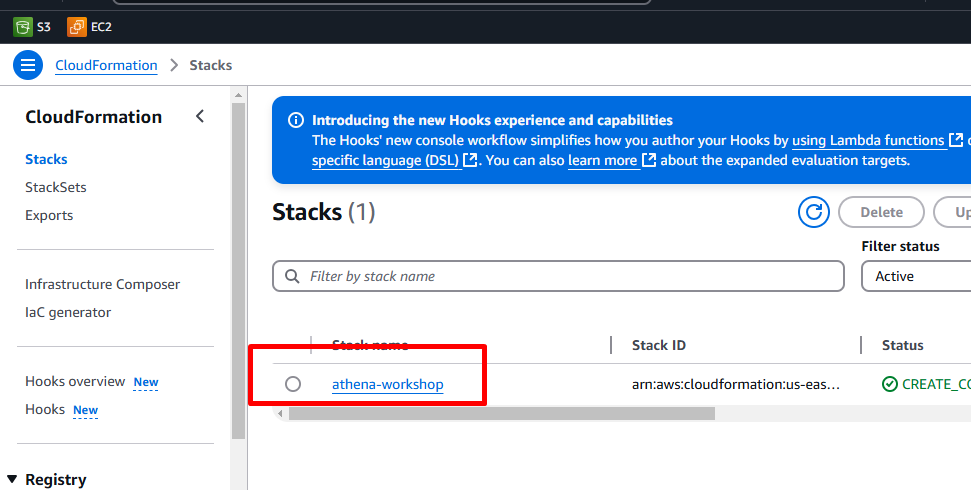
-
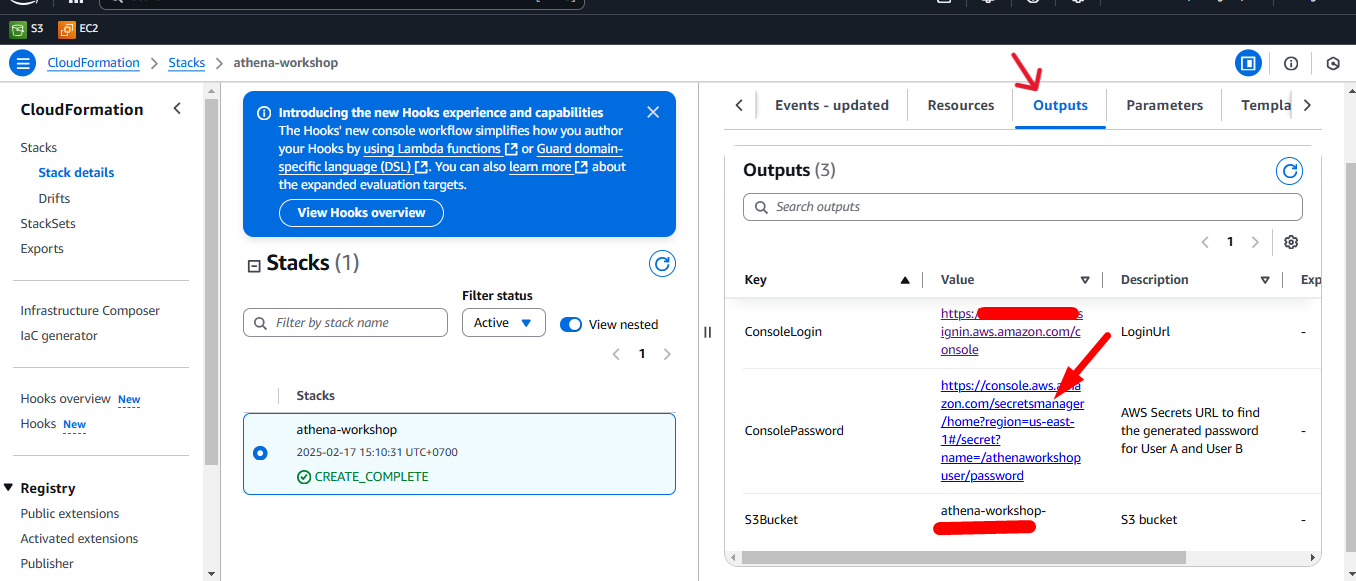
Navigate to the Outputs tab.
-
Click the ConsolePassword link to open AWS Secrets Manager.
-
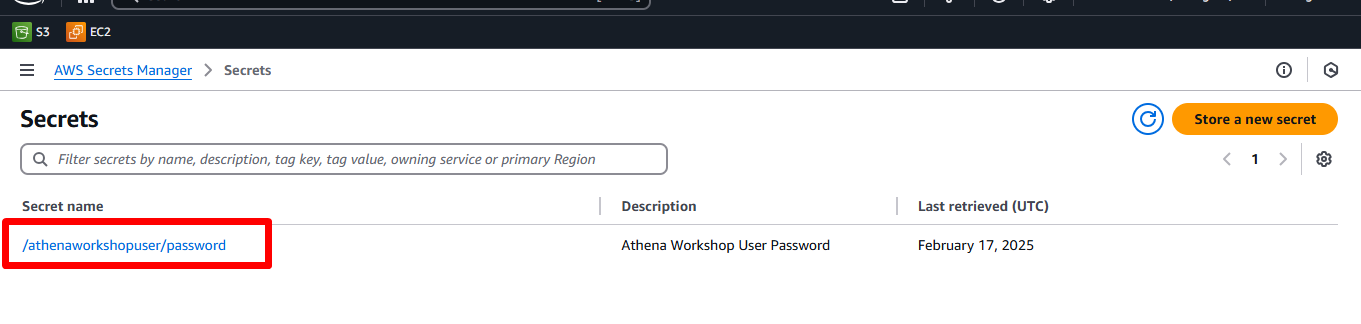
Click on the Secret Name link.
-
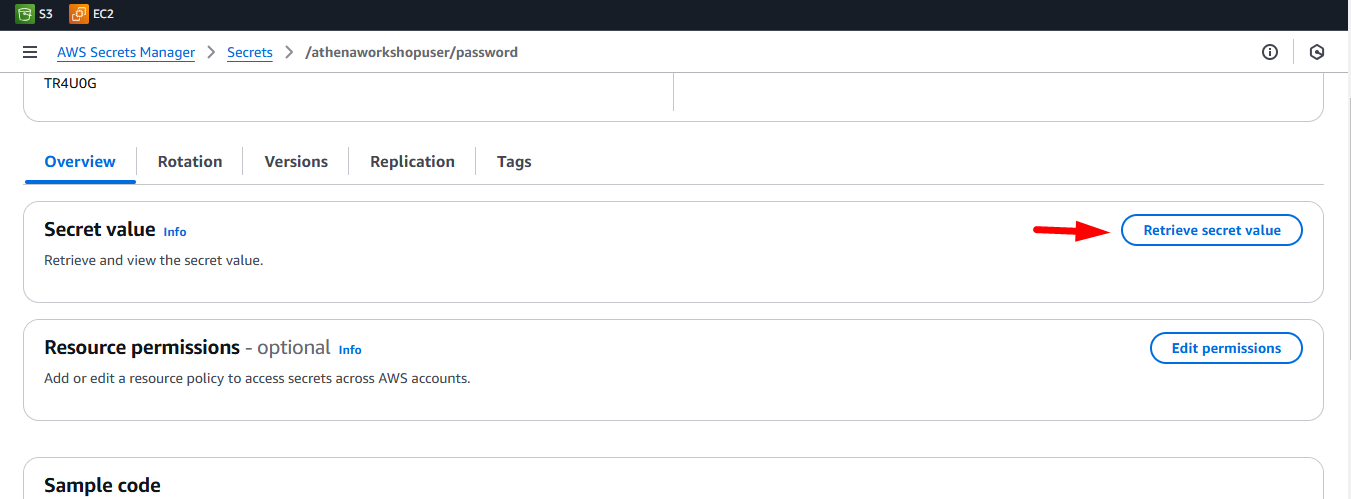
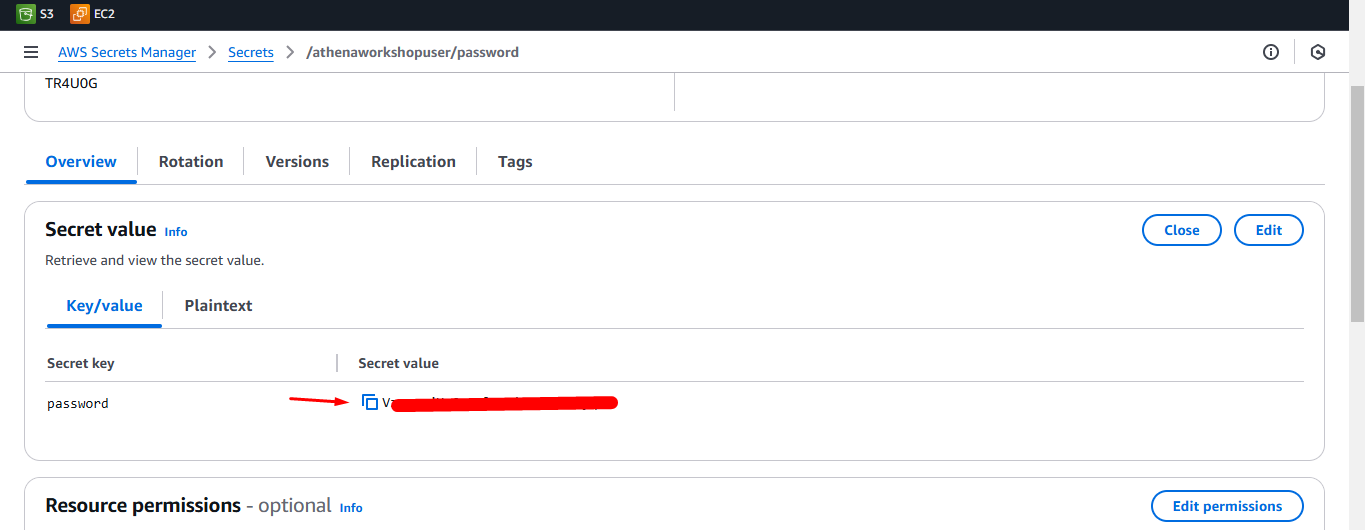
Click Retrieve secret value and copy the password to your clipboard.
-
Click on the copy icon to copy the password to clipboard
-
Return to the CloudFormation Outputs tab and click the ConsoleLogin link to open the AWS login page.

-
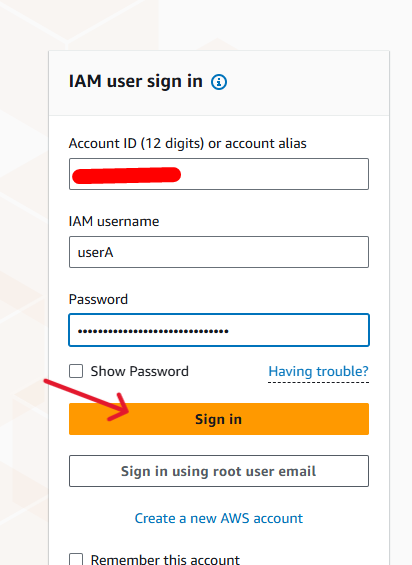
Enter the following details:
- IAM User Name:
userA - Password: Paste the copied password.

-
Click Sign in.
 Once logged in as UserA:
 -
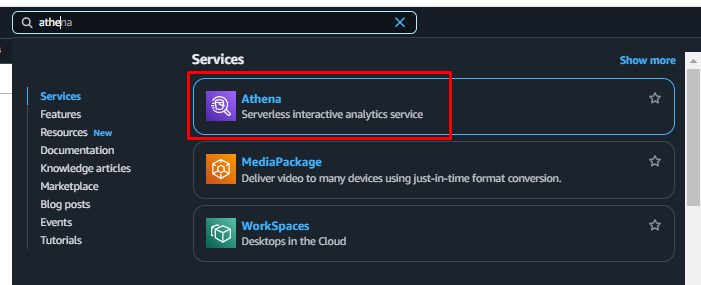
Open the Athena console by searching for “Athena” in the AWS search bar.
-
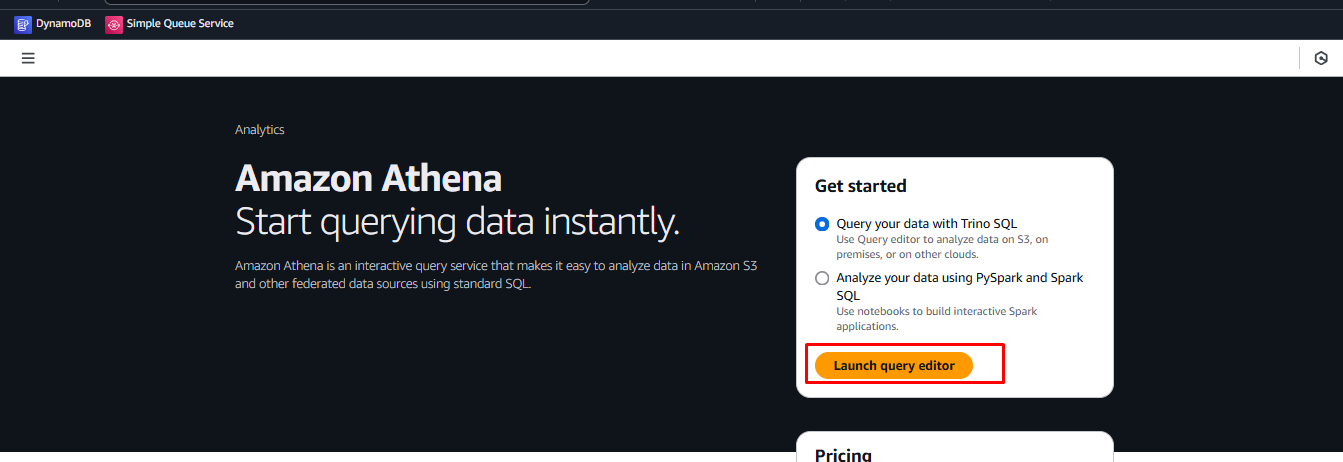
Click Launch Query Editor.
-
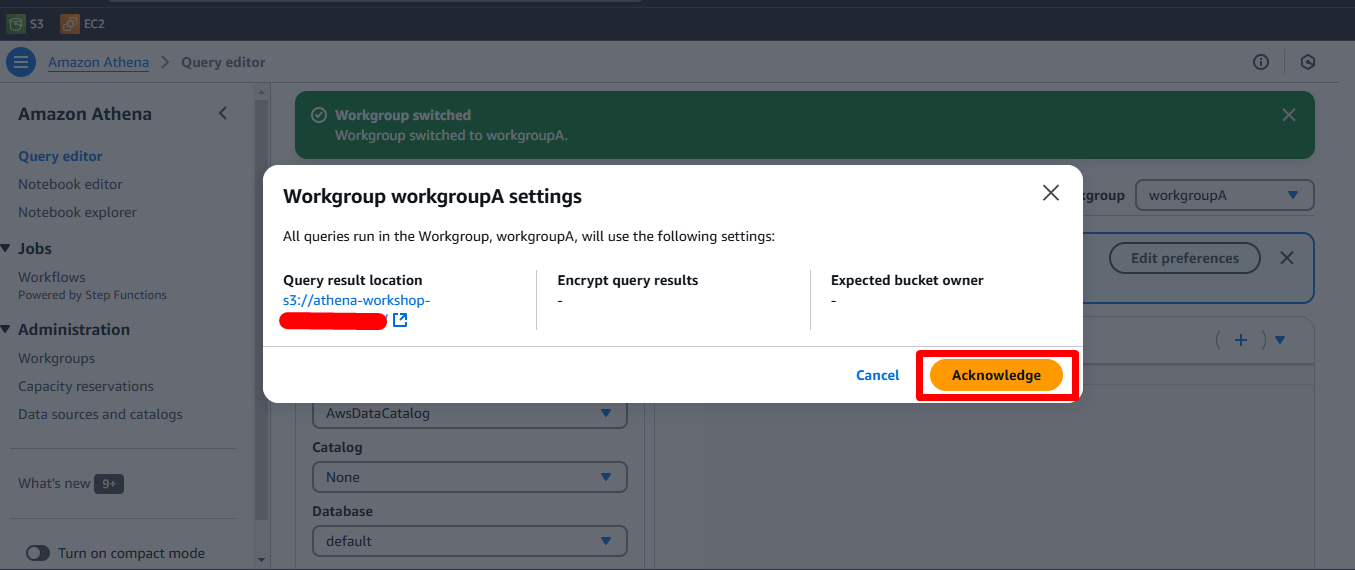
On the Athena dashboard click the “Launch query editor” button. If you get the prompt below click the Acknowledge button
-
Select WorkgroupA from the Workgroup dropdown.

-
Copy and paste the following queries into the query editor:
/* This query will fail as it exceeds the 15 MB limit */
SELECT * FROM customers_csv;

/* This query will succeed as it only scans 12 MB of data */
SELECT * FROM customers_parquet;
- Highlight the first query and click Run.
- The query fails with a Bytes scanned limit exceeded error since it surpasses the 15 MB limit.
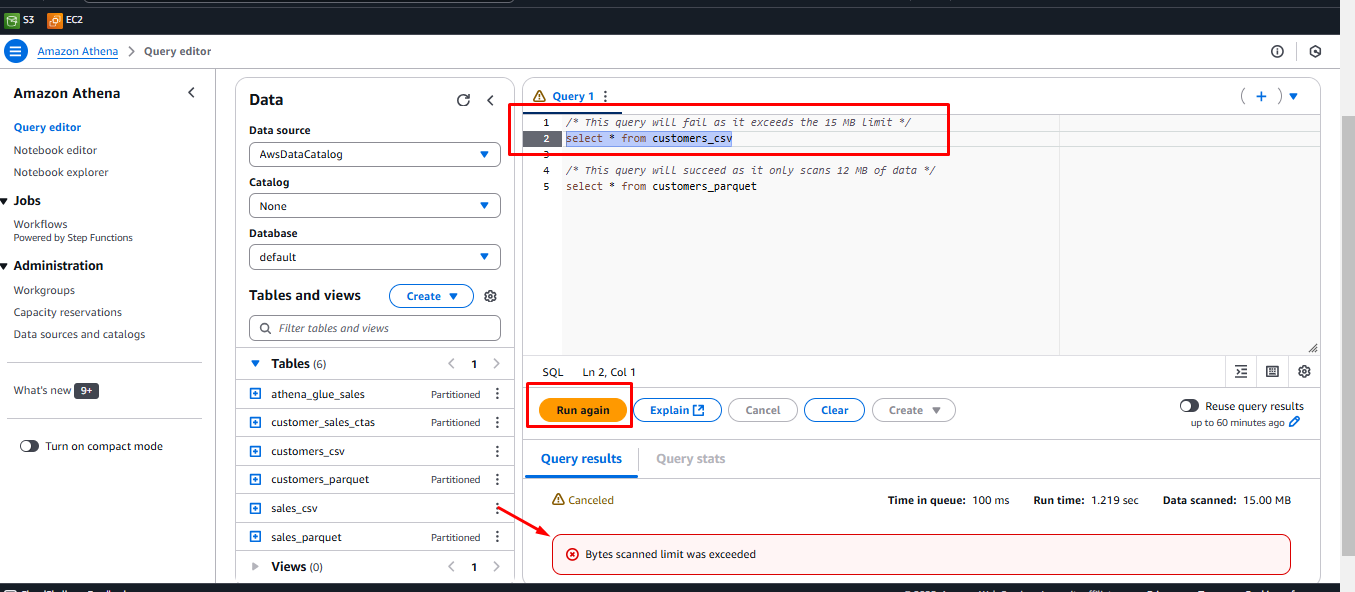
- The query fails with a Bytes scanned limit exceeded error since it surpasses the 15 MB limit.
- Highlight the second query and click Run.
- The query succeeds as it scans less than 15 MB of data.
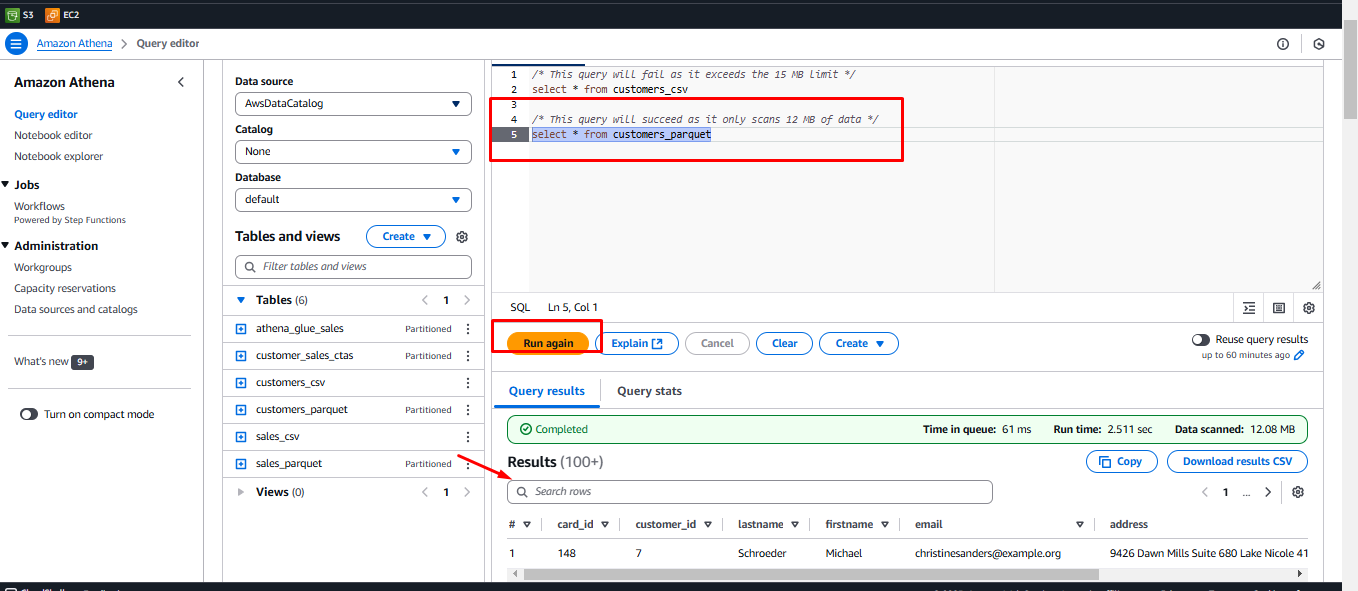
- The query succeeds as it scans less than 15 MB of data.
Using Workgroups to Isolate Queries
Workgroups allow you to isolate queries for different users, teams, or applications and enforce different query limits. IAM policies control access to specific workgroups.
To demonstrate this, attempt to switch workgroups as UserA:
-
In the Workgroups dropdown, select WorkgroupB.
-
An Error fetching workgroup message may appear because UserA lacks permissions to access WorkgroupB.

-
Copy and paste the previous queries into the query editor.
-
Highlight the first query and click Run.
- An error appears since UserA does not have permission to execute queries in WorkgroupB.
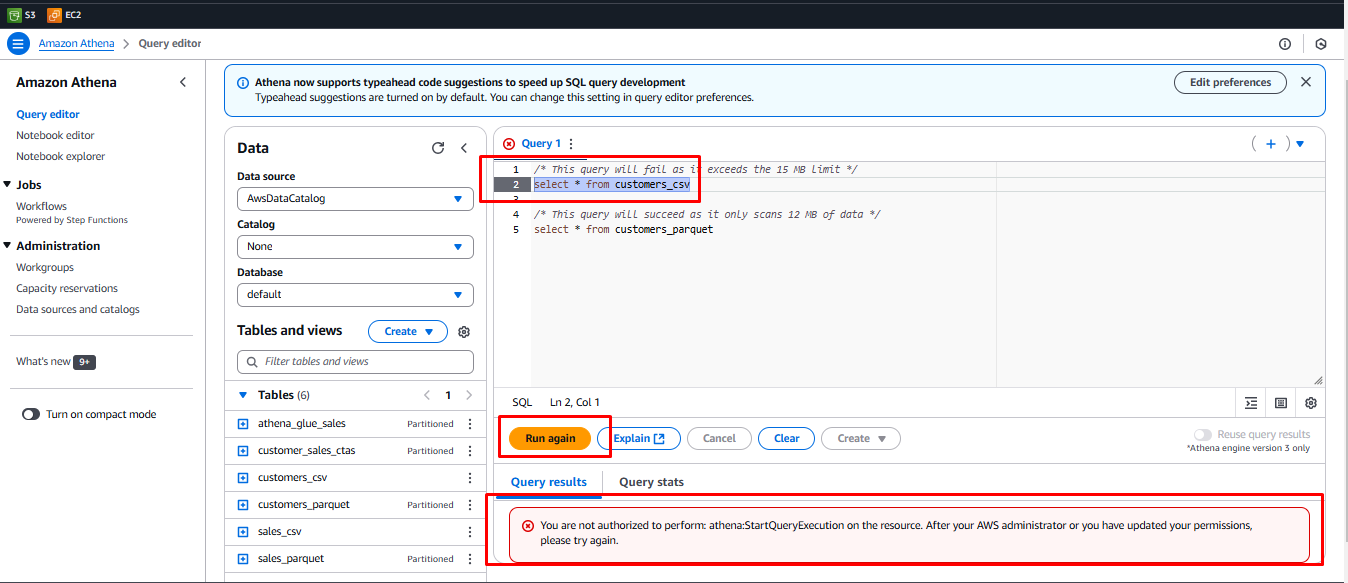
- An error appears since UserA does not have permission to execute queries in WorkgroupB.
This demonstrates how Athena Workgroups can be used to isolate queries for different users, teams, and applications. Additionally, workgroup data limits help control query costs effectively.